
“Virus” is a word we all are afraid of. While an Android virus is relatively rare, malicious apps occasionally make their way onto the Google Play store. Apps on third-party sites are more likely to pose a security risk since Google does not vet these apps. Malicious apps affect the performance of your phone and expose your private data, such as passwords or payment information. Here’s how to find and remove a virus from your Android phone.
First let’s see if your phone has a virus.
If your phone has a virus, it may suddenly become slow, or have an unusually high amount of data usage. You could also discover unauthorized in-app purchases. If your phone has a virus, it won’t alert you to the situation and offer help. Most new smartphones also have a “virus scanner” built in. So, if you use that it will show if there are any suspicious apps that could do harm to your device. There are also apps for this by top security companies, if your phone doesn’t come with it.
It’s relatively easy to remove a virus, and in most cases, you won’t lose any data. Keep your data safe and back up your smartphone regularly.
To remove a virus, reboot your smartphone in safe mode and then remove any apps that you don’t remember installing.
In order to do this, first Press and hold the Power button on your smartphone, then tap and hold Power off. In the Reboot to safe mode screen, tap OK. If that doesn’t work, press and hold the Power button and tap Power off. Next, press the Power button until the manufacturer’s logo appears, then hold the Volume down button until the device is powered up and Safe mode displays at the bottom of the screen. If that also doesn’t work, search online with your device model on how to boot in to safe mode. Once you get in to the safe mode, go to Settings > Apps. Look through the list for apps you didn’t download or that look suspect. Tap the app you want to remove, then tap Uninstall.
If the uninstall button is greyed out, the app has admin access. To remove admin access, go Settings > Security > Device administrators and deselect any apps that shouldn’t have access, then uninstall those apps. To exiting safe mode, restart your phone. Press and hold the Power button, then tap Restart.
If all else fails, you can do a factory reset, but you’ll have to re-download most of your apps, and you’ll lose any data that’s not backed up. It can be annoying to do all this, but if your phone is affected by a virus that is already spread across, then it is best to perform the factory reset first.
To do a factory reset, first open the Settings app. Now Tap System > Reset options > Erase all data (factory reset). Depending on your Android version, the factory reset option may be under Backup & reset > Factory data reset and Reset phone. If you can’t find the Factory Reset option, go to the Search box and search for reset. Now enter your passcode to complete the process and enter your other details if it asks for like Google A/C password. Now your phone will reset to the factory settings.
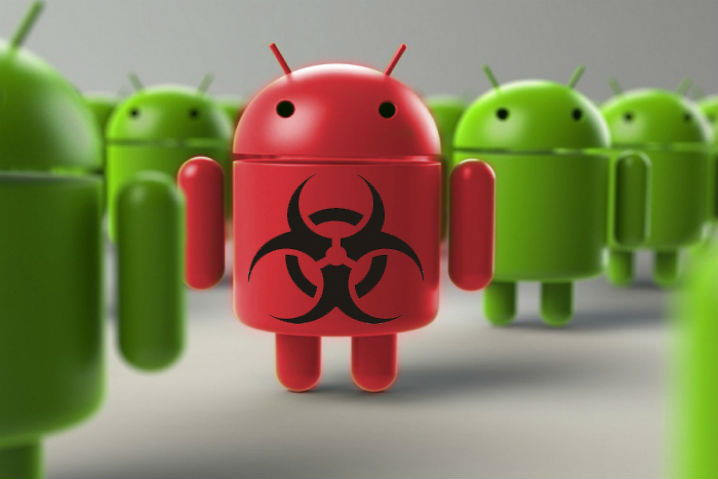
Now that you have a fresh phone, how can you avoid Viruses on Your smartphone?
Here are a few ways to avoid getting a virus on your smartphone.
- Keep your phone updated: To view the most recent security update, open the Settings app and tap Security or System updates.
- Enable Google Play Protect: To regularly scan your phone for malware, make sure Google Play Protect is enabled. Go to Settings > Google > Security > Google Play Protect. I have a video on this on my YouTube channel, check it out on YouTube at youtube.com/androdollar or search for “Andro Dollar Google Play Protect”
- Find harmful apps using Google Play Protect: If the Scan device for security threats toggle is off, turn it on. Above that, there’s a list of harmful apps on your phone. If no harmful apps are found, it says, “Looks good.”
- Avoid app clones: Watch out for app clones that resemble legitimate apps but that have a different developer’s name on it. Sometimes these clones earn ad revenue until you figure out your mistake, or they may try to steal your identity. In any case, verify the app maker before downloading any app.
- Use Android virus scan apps: For extra security, download an additional antivirus app in case anything slips through Google Play Protect. There are many free antivirus apps for Android from top-rated security companies.
- Avoid Installing Outside of the Google Play Store
One of the best ways to not get an Android virus is to avoid installing apps outside of the Google Play store.
With that I hope your smartphone is now Virus free! Stay tuned to www.androdollar.com and follow me on Social Media @AndroDollar and @BanuAthuraliya to always stay up to date with latest from the tech world.