Andro Dollar Andro Dollar
  • Advertise on Andro Dollar
  • Videos
  • Gaming
  • About Us
  • Contact Us
  • Newsletter
  • Wallpaper
  • Privacy Policy
  • Terms and Conditions
Andro Dollar Andro Dollar Andro Dollar
  • Videos
    • Unboxings
    • Reviews
    • Tips
    • Vlogs
    • Best Apps
    • Best Games
  • Shorts
  • Reviews
  • News
screen-shot-2016-12-08-at-10-02-44-pm

HOW TO : Take a screenshot on Android phones and tablets

  • Banu
  • December 8, 2016
  • 2 minute read
Total
0
Shares
0
0
0

We all get the need to take a screenshot. For some, Taking screenshots are an important part in the day to day life. Especially, to share funny or exciting conversations with our friends. They are the most realistic ways of showing conversations to people when they are not around. This article will tell you how to take screen shots from various Android phones and tablets.

For majority of Android phones and tablets you simply press and hold the power and volume-down buttons together in order to take a screenshots. If your device has a home button instead try power and home.

You might face the following problems while doing that:

Press the power button too soon resulting in the display switching off;

Press the volume-down button too soon resulting in your screenshot having the volume bar.

Once you take the screenshots you can view them from your notifications bar or the gallery.

Sometimes some Android phones allows you to take screenshots in ways other than the usual.

Samsung Flagship devices (like the Galaxy S7 Edge, Galaxy Note 5, Galaxy S6, etc) allow you take a screenshot with the swipe of your palm.  This method is much more easier to use than the usual method once you get used to it. You can give it a shot if you haven’t tried it before by checking the Motion and Gesture options.

If you’re running an older version of Android such as 2.3 Gingerbread or 2.2 Froyo then you’ll need to download an app to take a screenshot. Try an app like No Root Screenshot It ($4.99). This also comes with an additional desktop app which you are required to install and connect to your phone via that allowing you to take screenshots.


Total
0
Shares
Share 0
Tweet 0
Pin it 0
Related Topics
  • Android
  • How-To
  • Screenshot
  • Tutorial
Banu

I'm Banu. I also go by as "Andro Dollar". I am a passionate tech geek born and raised in Sri Lanka who likes to do creative things and look at things differently. I'm a risk taker and a perfectionist. If I'm doing something, I'll do it right! That's my Moto.

Previous Article
apple-1200×600

Apple reveals the Best of 2016 with top Apps, Games, Music, Movies and more

  • Banu
  • December 8, 2016
View Post
Next Article
open-graph-default

TIPS : To use Spotify

  • Banu
  • December 8, 2016
View Post
You May Also Like
View Post
  • How To

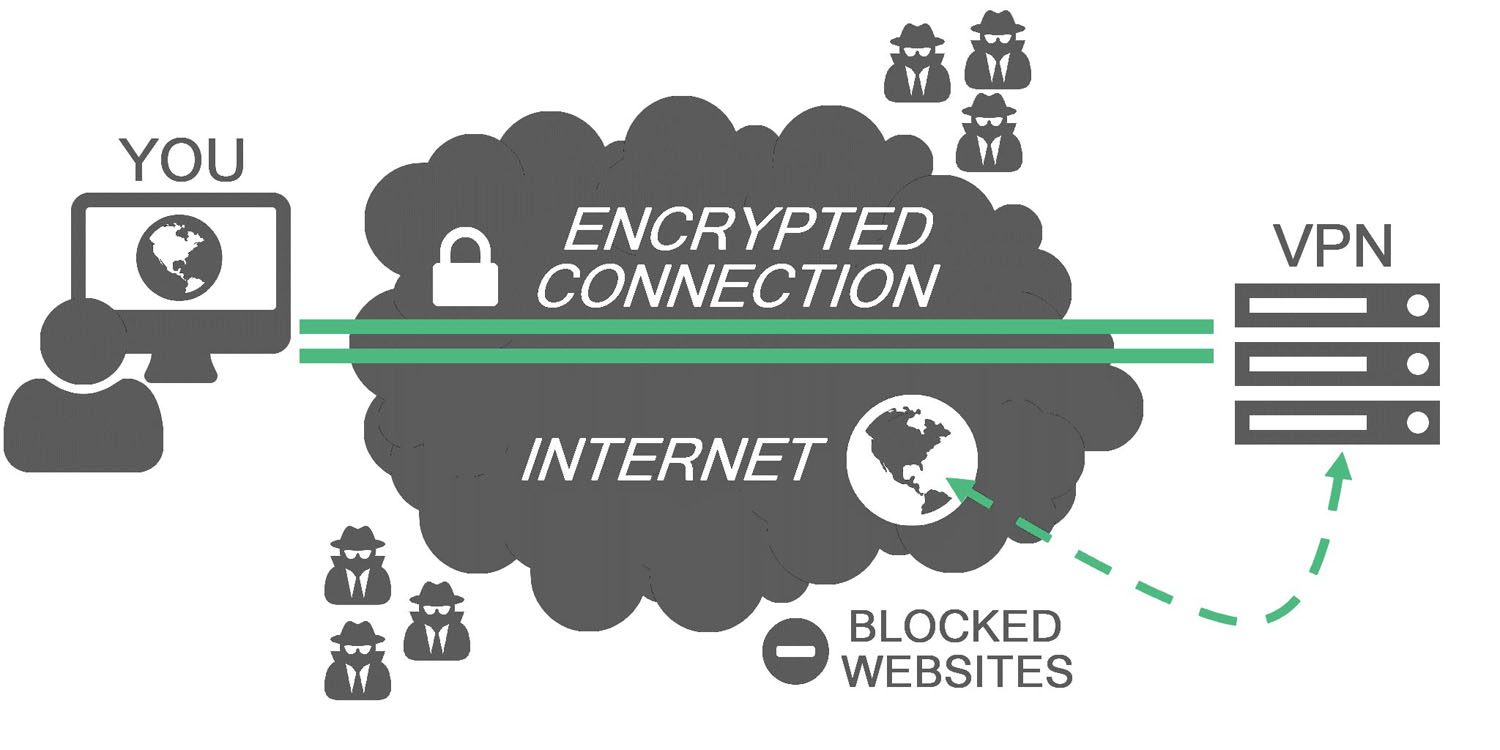
HOW TO : Add a VPN to your web browser in 3 simple steps

  • Writer Andro Dollar
  • May 10, 2019
View Post
  • How To

How to install Android P on your Google Pixel 2, Pixel 2 XL, Pixel or Pixel XL

  • Banu
  • March 8, 2018
View Post
  • How To

HOW TO : Install Android 8.0 Oreo Beta on to your Huawei Nova 2i NOW

  • Banu
  • March 3, 2018
View Post
  • How To

Bring back the “View Image” button on Google Images in less than 1 minute

  • Banu
  • February 19, 2018
fix-mobile-network-not-available-error-1000×875
View Post
  • How To

How To : Fix Android’s ‘insufficient storage available’ error message

  • Banu
  • November 28, 2016
Technicians working on electronics or motherboard
View Post
  • How To

HOW TO : Fix a PC that won’t start up

  • Banu
  • November 20, 2016
cable2-520×354
View Post
  • How To

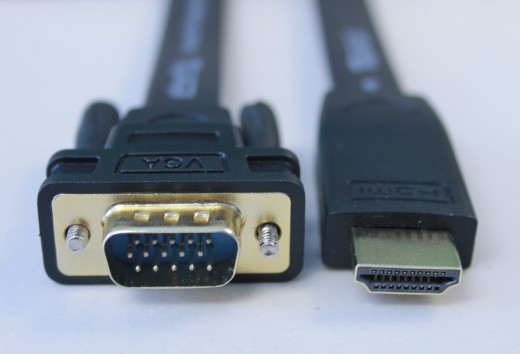
HOW TO : Connect a laptop to a TV via HDMI, VGA and USB

  • Banu
  • November 14, 2016
google-duo-andro-dollar
View Post
  • How To

HOW TO : Use Google Duo

  • Banu
  • November 12, 2016

Leave a Reply Cancel reply

You must be logged in to post a comment.

Ebates Coupons and Cash Back
Andro Dollar Andro Dollar
  • Advertise on Andro Dollar
  • Videos
  • Gaming
  • About Us
  • Contact Us
  • Newsletter
  • Wallpaper
  • Privacy Policy
  • Terms and Conditions
Tech with over a decade of experience

Input your search keywords and press Enter.

Powered by Joinchat
Hello 👋
Can we help you?
Open chat