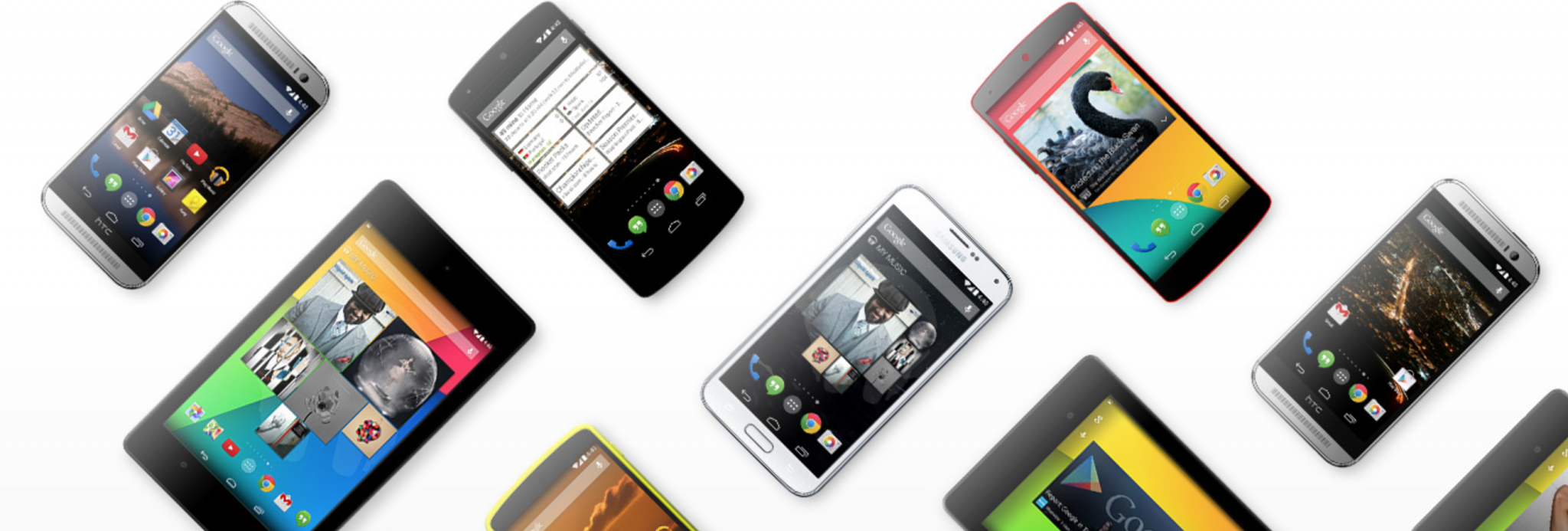
UPDATE : The Google Now Launcher is now available on the Google Play Store and can be downloaded on supported devices by clicking here.

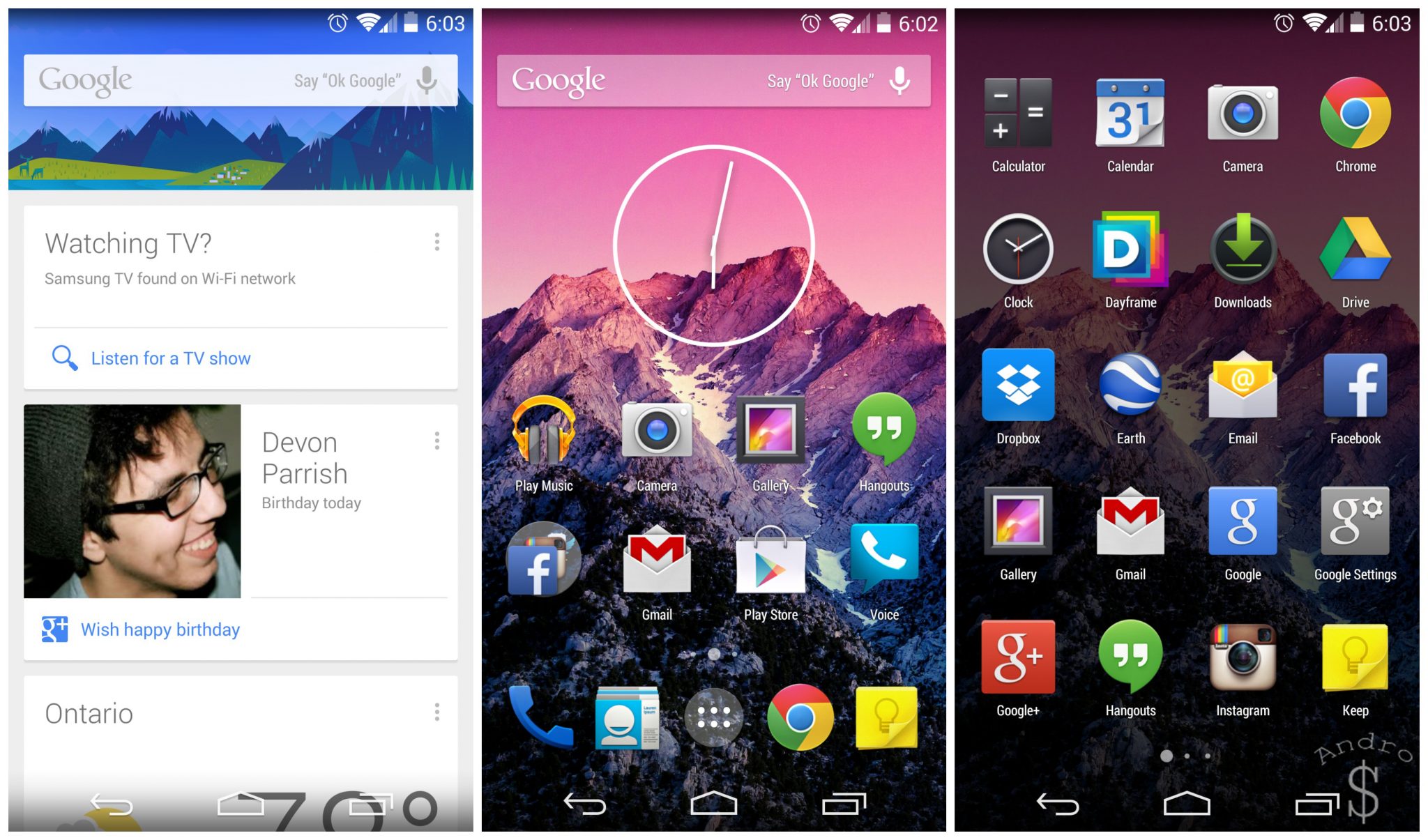
Google released Android 4.4 Kitkat on October 31st 2013 and as usual there are alot of important features of this OS Update. The Most important one being the Newly redesigned “Google Experience Launcher” which is now known as the “Google Now Launcher”
This launcher is pre-loaded on the Newly released Nexus 5 and this is much more neater and clean looking than the earlier versions. Now as a tech enthusiast if you can’t wait for the Official Kitkat Update on your device (Sometimes it takes MONTHS) you can try the extracted apk file to install and experience the “Google Now Launcher”
Follow the below steps to get the Google Now Launcher now.
STEP 1 – Download the Files
There are three main files that you will need in order for the launcher to work. They are all standard Android features, just with different names.
- PreBuiltGmsCore.apk (Google Play Services 4.0)
- Velvet.apk (Google Search)
- Google Now Launcher.apk (Launcher)
You can find all three files by clicking here. (This is a zipped file, so the easiest way is to unzip them on your computer and drag the unzipped files to your phone via the USB.)
STEP 2 – Fixing Settings
In order to install “.apk” files on your phone, you need to tick “Unknown Sources” under settings. To do that, go to Settings —> Security —> Device Admin and make sure Unknown sources is checked.
Then Go to Application Manager under settings and swipe to the ALL Tab. Then find GOOGLE PLAY SERVICES. Once you find it, click on it and click UNINSTALL UPDATES and then click disable.(This is required ONLY on some devices. But there is no harm in trying this step also.) Then follow Step 3.
STEP 3 – Installing the “Google Now Launcher”
To install the apks using your device, open your file manager (Eg- My Files on Samsung or other third party app such as Astro File Manager or ES File Explorer.
Then find the 3 apk files and first install the Velvet.apk file and click done. Then install the PreBuiltGmsCore.apk and click done. Then finall installed the launcher.apk file and click open. If a pop up screen appears then click on the Launcher icon and click Just Now/ Always (Your Choice)
That’s it… You are now Greeted with the New Android 4.4 Launcher… Head on over to settings of the launcher by pressing the menu button and download offline languages to use the “OK GOOGLE” Commands and swype left to get the Google Now Page. To change your wallpaper or add an Widget just press & hold on the main screen. To add more screens just drag and drop a shortcut or widget on to the side and a new page will be automatically created.
Congratulations ! You now have a closer to stock Android experience on your phone.. Go ahead and enjoy the new interface.
Don’t forget to Share this post on Social Media as it helps us grow and it helps others also learn what you just learnt.