Andro Dollar Andro Dollar
  • Advertise on Andro Dollar
  • Videos
  • Gaming
  • About Us
  • Contact Us
  • Newsletter
  • Wallpaper
  • Privacy Policy
  • Terms and Conditions
Andro Dollar Andro Dollar Andro Dollar
  • Videos
    • Unboxings
    • Reviews
    • Tips
    • Vlogs
    • Best Apps
    • Best Games
  • Shorts
  • Reviews
  • News

HOW TO : Add a VPN to your web browser in 3 simple steps

  • Writer Andro Dollar
  • May 10, 2019
  • 2 minute read
Total
0
Shares
0
0
0

We all know at some point in your day to day life on the Internet you will come across blocked websites, sites which your ISP (Internet Service Providers) forbid you to access. 

What if I tell you that there is a way to access these blocked/forbidden websites. Yes you are right there is actually something called a VPN which you can use to access these blocked content from your Internet Service Providers (ISP).

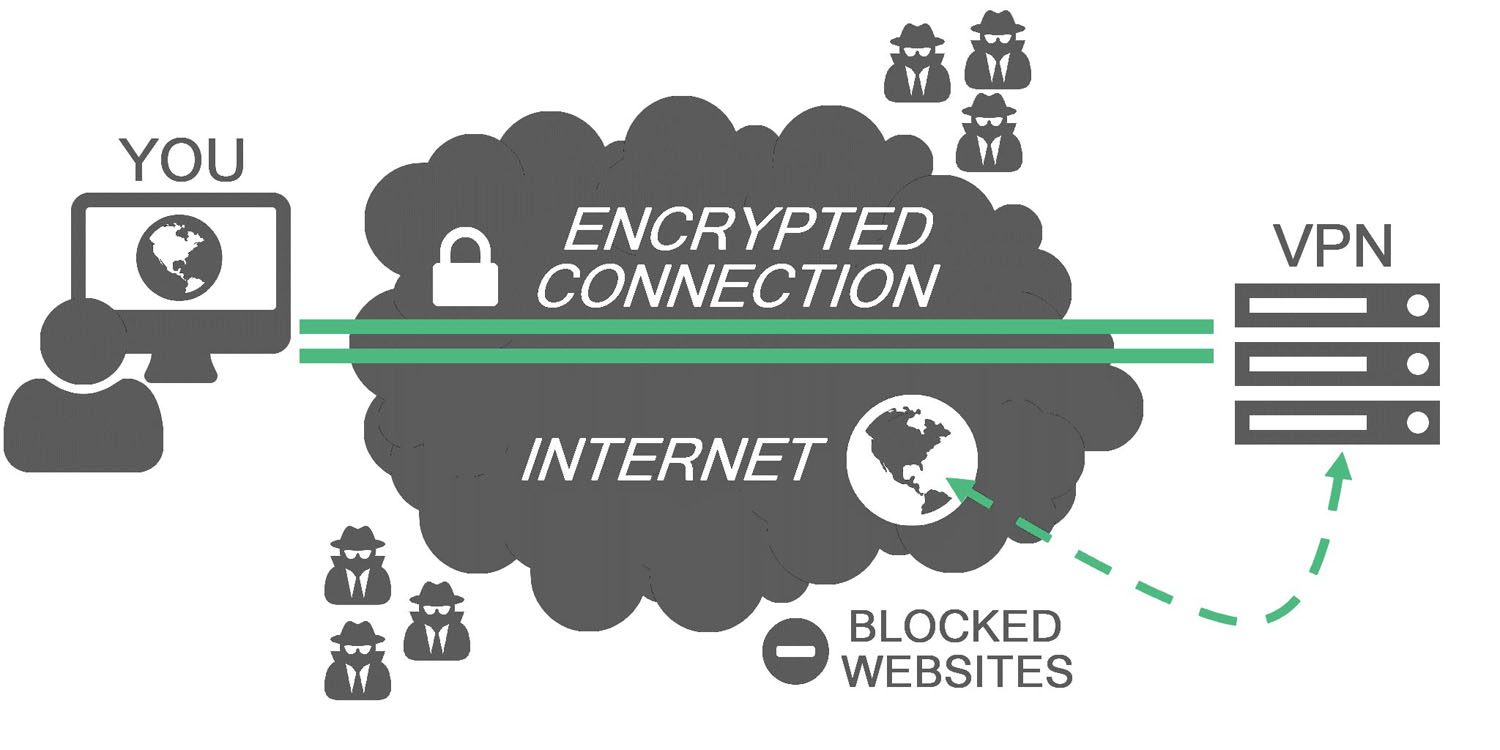
Some people here might know what a VPN means, but some of you don’t. A VPN (Virtual Private Network) is a service that lets you access the Internet safely and privately by routing your connection through a  server and hiding your online actions. So in order to add a VPN to your browser all you need to do is follow some simple steps. Since the commonly used browser is Chrome I will use Chrome for this tutorial.

Step 1

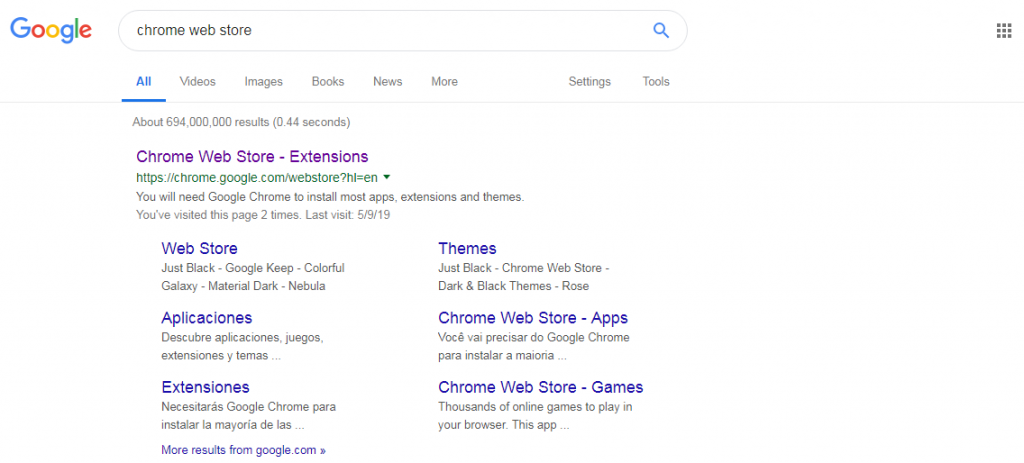
Open your browser and click on the Apps icon on your bookmarks bar or simply Google search the words “whatever the browser you use” and web store for example “chrome web store”.

Related image

or

Step 2

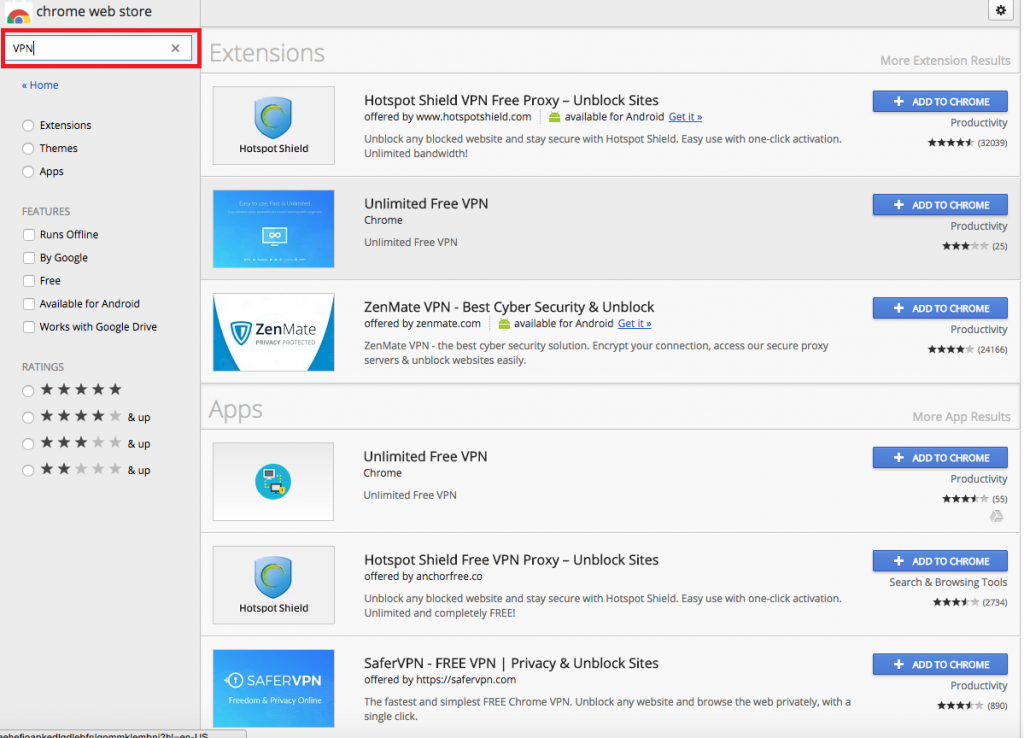
After you have done that you can follow the link and simply search for the word VPN on the search bar on your left hand side as shown below. 


Step 3

And then from the list on your right hand side you can choose a VPN of your choice and then you can click Add to chrome. After this is done you will see the extension on your top right corner of the browser where you can control it.

I hope this tutorial helped you, if it did be sure to share this to your friends. Feel free to leave a comment below. 

Total
0
Shares
Share 0
Tweet 0
Pin it 0
Related Topics
  • Browser
  • Chrome
  • How-To
  • Tutorial
  • VPN
Writer Andro Dollar

Previous Article

BEST email client for Mac, Windows or Linux!

  • Writer Andro Dollar
  • May 8, 2019
View Post
Next Article

All you need to know about the OnePlus 7 Pro and 7

  • Writer Andro Dollar
  • May 14, 2019
View Post
You May Also Like
View Post
  • How To

How to install Android P on your Google Pixel 2, Pixel 2 XL, Pixel or Pixel XL

  • Banu
  • March 8, 2018
View Post
  • How To

HOW TO : Install Android 8.0 Oreo Beta on to your Huawei Nova 2i NOW

  • Banu
  • March 3, 2018
View Post
  • How To

Bring back the “View Image” button on Google Images in less than 1 minute

  • Banu
  • February 19, 2018
screen-shot-2016-12-08-at-10-02-44-pm
View Post
  • How To

HOW TO : Take a screenshot on Android phones and tablets

  • Banu
  • December 8, 2016
fix-mobile-network-not-available-error-1000×875
View Post
  • How To

How To : Fix Android’s ‘insufficient storage available’ error message

  • Banu
  • November 28, 2016
Technicians working on electronics or motherboard
View Post
  • How To

HOW TO : Fix a PC that won’t start up

  • Banu
  • November 20, 2016
cable2-520×354
View Post
  • How To

HOW TO : Connect a laptop to a TV via HDMI, VGA and USB

  • Banu
  • November 14, 2016
google-duo-andro-dollar
View Post
  • How To

HOW TO : Use Google Duo

  • Banu
  • November 12, 2016

Leave a Reply Cancel reply

You must be logged in to post a comment.

Ebates Coupons and Cash Back
Andro Dollar Andro Dollar
  • Advertise on Andro Dollar
  • Videos
  • Gaming
  • About Us
  • Contact Us
  • Newsletter
  • Wallpaper
  • Privacy Policy
  • Terms and Conditions
Tech with over a decade of experience

Input your search keywords and press Enter.

Powered by Joinchat
Hello 👋
Can we help you?
Open chat