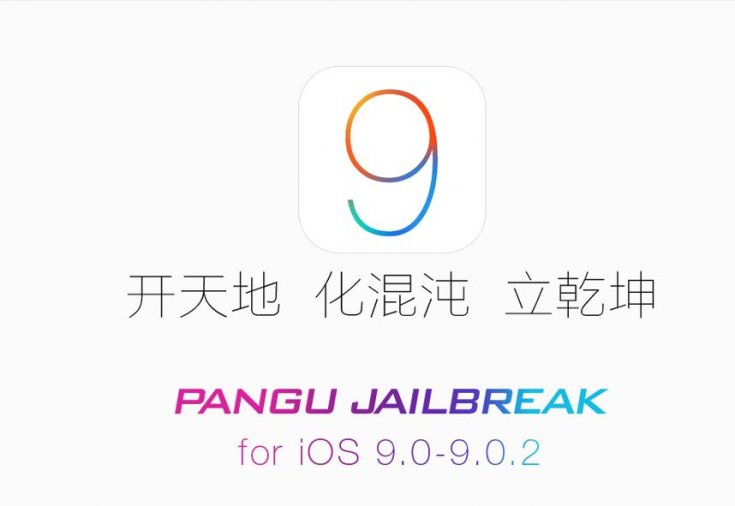
This time happy times come early for iOS users as the latest iOS 9 jailbreak has been released. Pangu has surprised everyone by releasing untethered iOS 9.0.2 compatible jailbreak. So on popular demand, Here’s how you jailbreak your iDevice on iOS 9.0.2.
Before we begin,
1) This works on the Following Devices running iOS 9.0.2.
- iPhone 6s
- iPhone 6s Plus
- iPhone 6
- iPhone 6 Plus
- iPhone 5s
- iPhone 5c
- iPhone 5
- iPhone 4s
- iPad (2, 3, 4, Air, Air 2, mini 1, mini 2, mini 3)
- iPod touch 5
2) This will work with Windows.
3) You must have the latest version of iTunes installed. If not, head here, download, and install the version there.
4) If you have a Passcode Enabled, please Remove it before you proceed. (Go into the Settings app on your device and temporarily disable it in the General —> Passcode Lock section. (You can re-enable it after the jailbreak is complete)
5) Turn off the “find my iPhone” Feature under iCloud Settings. (You can re-enable it after the jailbreak is complete)
6) Turn on Airplane mode to prevent any updates or data-driven apps from interfering with the jailbreak process.
7) Plug your iPhone in to the computer, and perform a Backup with iTunes.
8) Make sure you have Restored your firmware via iTunes and not installed the OTA Update as sometimes it might cause an issue. If you see any issue, Please restore the firmware via iTunes. Follow my guide here (Follow it by using the latest iOS 9 ipsw files).
How to Jailbreak –
1) Download the Latest version of the Pangu Jailbreak Tool to your computer.
2) Launch the Pangu Jailbreak Tool with Admin Rights on Windows (Right Click and Run as Administrator).
3) Now Connect your iOS device to your PC.
4) Now click on the Start button in the center to start Jailbreaking. Then Give it a Few Minutes.
5) You will now get another window, tap on ‘Already backup’ to continue.
6) During the jailbreak process, you will notice two apps appear on the Home screen, one named Pangu and another named WWDC. Your device will automatically reboot after which the tool will ask you to unlock your device and turn on Airplane Mode again. Once you turn on the Airplane Mode again, you will notice the tool will continue the jailbreaking process.
7) After sometime, it will then ask you to run the Pangu app from the Home screen. Do it and give access to Photos app when prompted to.
8) After a short while, the jailbreak will complete and you will get the message “Jailbreak completed” on the tool.
9) You can now safely close the Pangu app on Windows. Your device will now restart after which you will find Cydia on the Home screen.
That’s it! Now go ahead and Enjoy Customizing your iDevice. Feel free to share the tutorial with your friends who are using an iDevice.
WARNING – Whatever you do with your phone, you do that entirely on your own risk and you have full responsibility for the consequences. The author can’t be responsible for any damages of your phone!
Show your support to the Developers, Consider Donating.
If you liked the content, Please Share with your friends who might find it useful.