Andro Dollar Andro Dollar
  • Advertise on Andro Dollar
  • Videos
  • Gaming
  • About Us
  • Contact Us
  • Newsletter
  • Wallpaper
  • Privacy Policy
  • Terms and Conditions
Andro Dollar Andro Dollar Andro Dollar
  • Videos
    • Unboxings
    • Reviews
    • Tips
    • Vlogs
    • Best Apps
    • Best Games
  • Shorts
  • Reviews
  • News
2014-04-12 12.53.08

HOW TO : Fix the Galaxy Note 3, S4 and a bunch of Flagships to work with 4G in Sri Lanka

  • Banu
  • April 12, 2014
  • 2 minute read
Total
0
Shares
0
0
0

We have all been very disappointed with Samsung when it comes to 4G Compatibility in their Flagship devices like the S4 & Note 3 in Sri Lanka. The Only way it will work is if we change the phone’s CSC or flash an entirely new Firmware that is compatible with 4G offerings such as Dialog 4G here in Sri Lanka. After trying so many things to get this fixed, We finally have a Easy fix for this. The bad thing about this is that you will need Root Permissions for this to work; otherwise it only takes less than 5 Minutes. Let’s get started.

  • First get your phone Rooted, if you haven’t already done that. Check the XDA Developers Forum for tutorials on How to Root your Device.
  • You also need a Compatible device which has 4G; In this I will be using the Galaxy Note 3 (N9005) and a 4G U-Sim from a Carrier such as Dialog.
  • Now download theย ES File Explorerย from the Google Play Store.
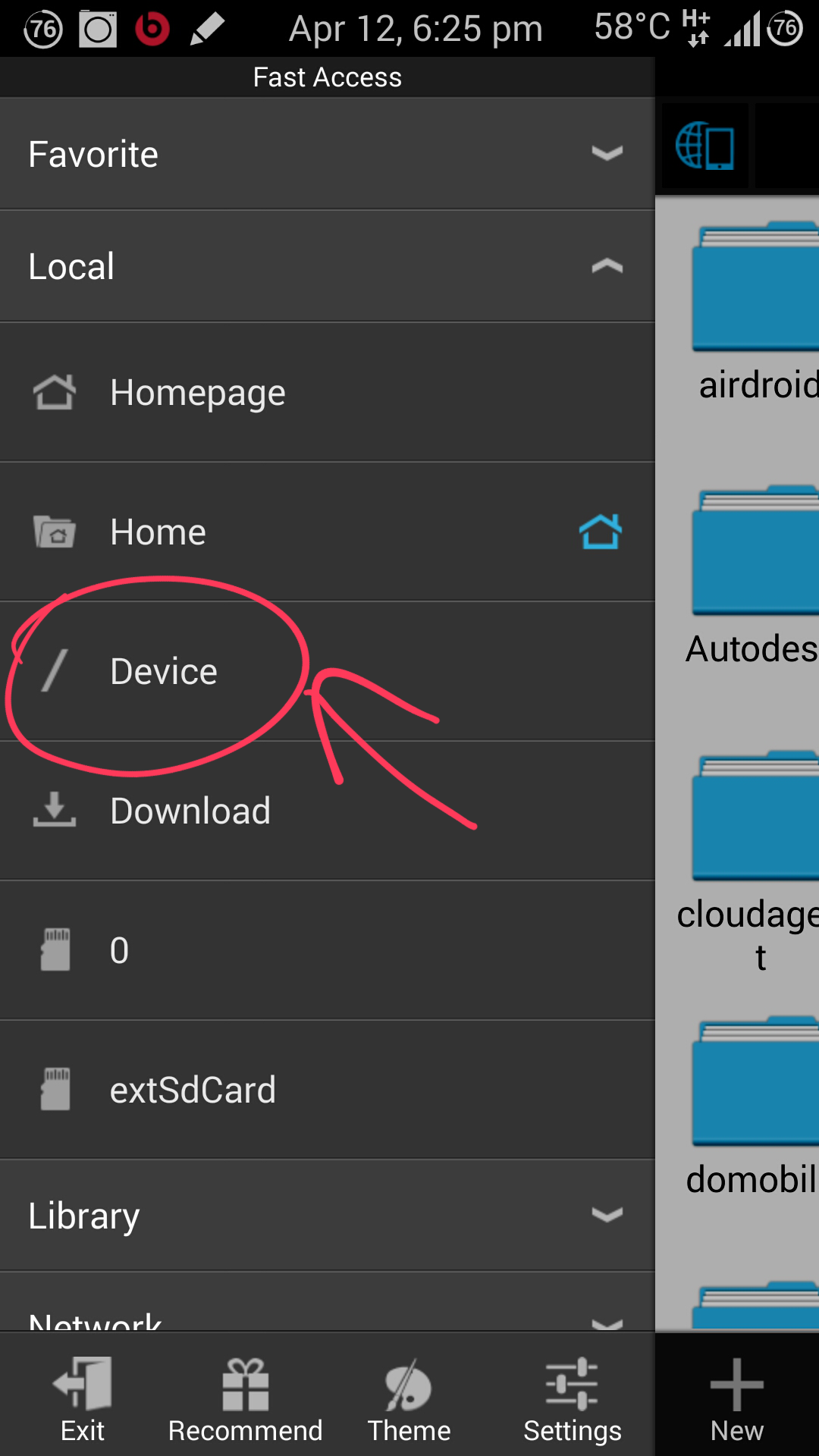
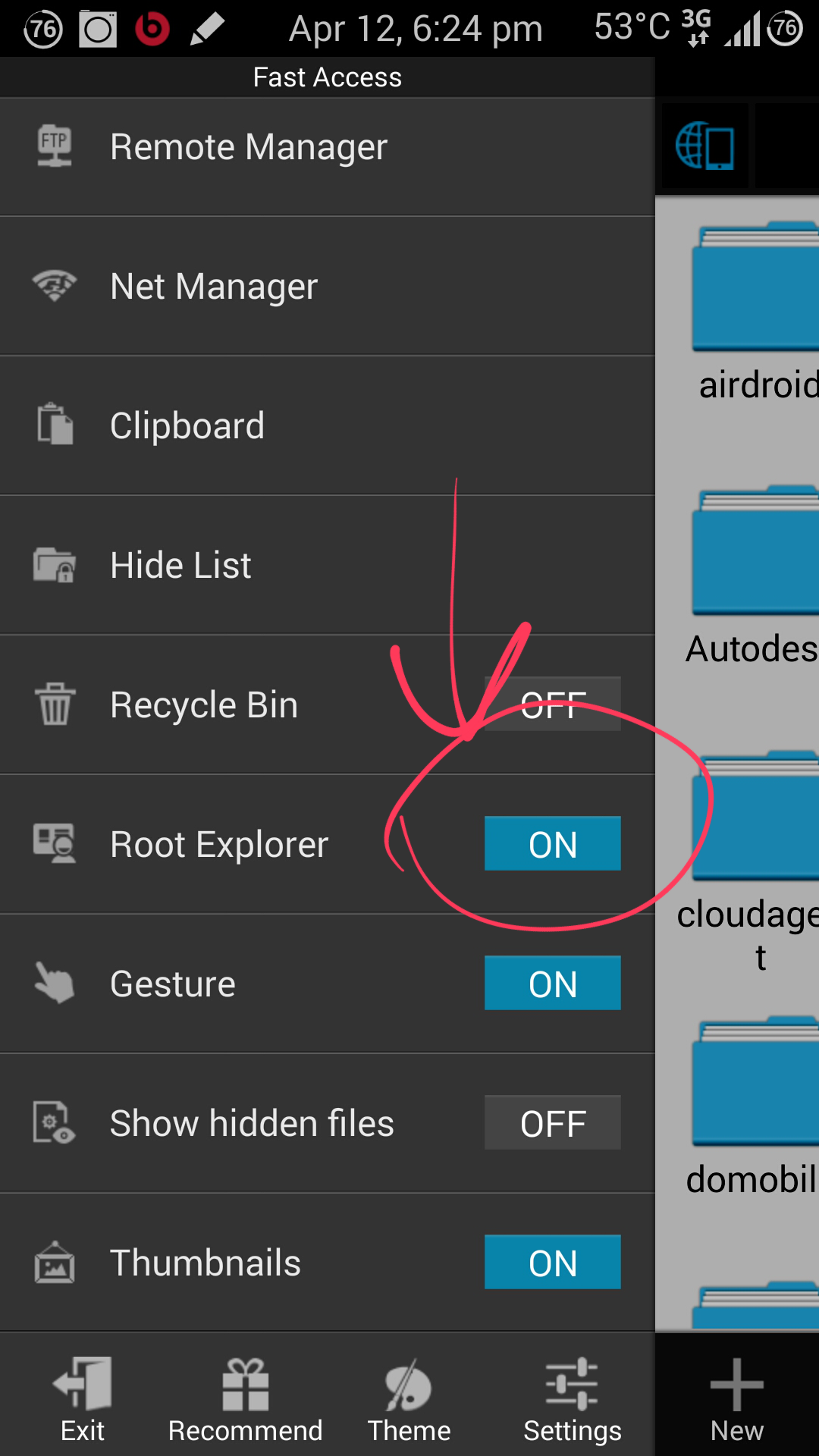
  • Open ES File Explorer, enable the Root Explorer mode; on the Fast Access menu
2014-04-12 12.55.00

  • Click on “/Device”

2014-04-12 12.55.24

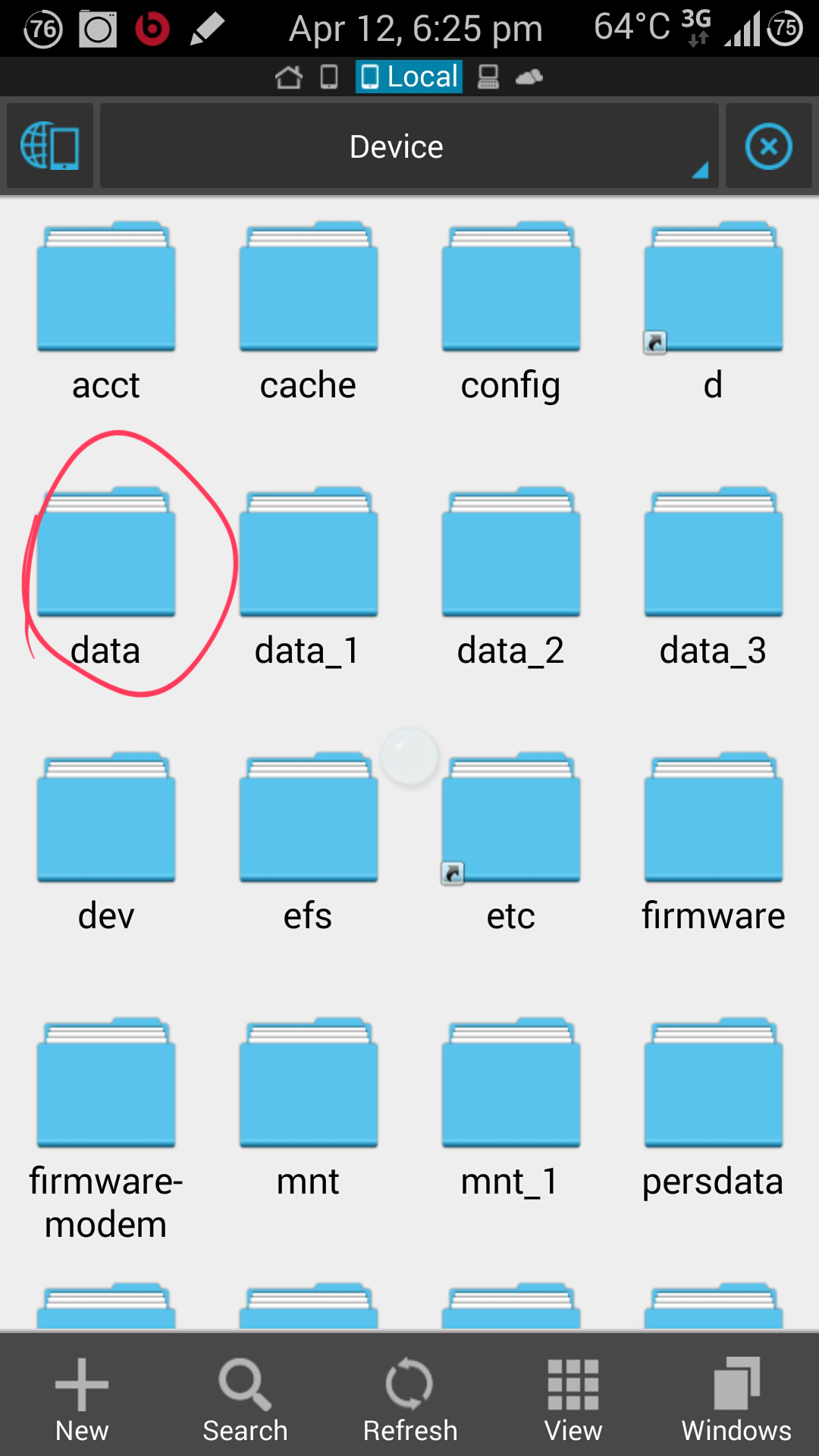
  • Next Open the “Data” Folder

2014-04-12 12.55.36

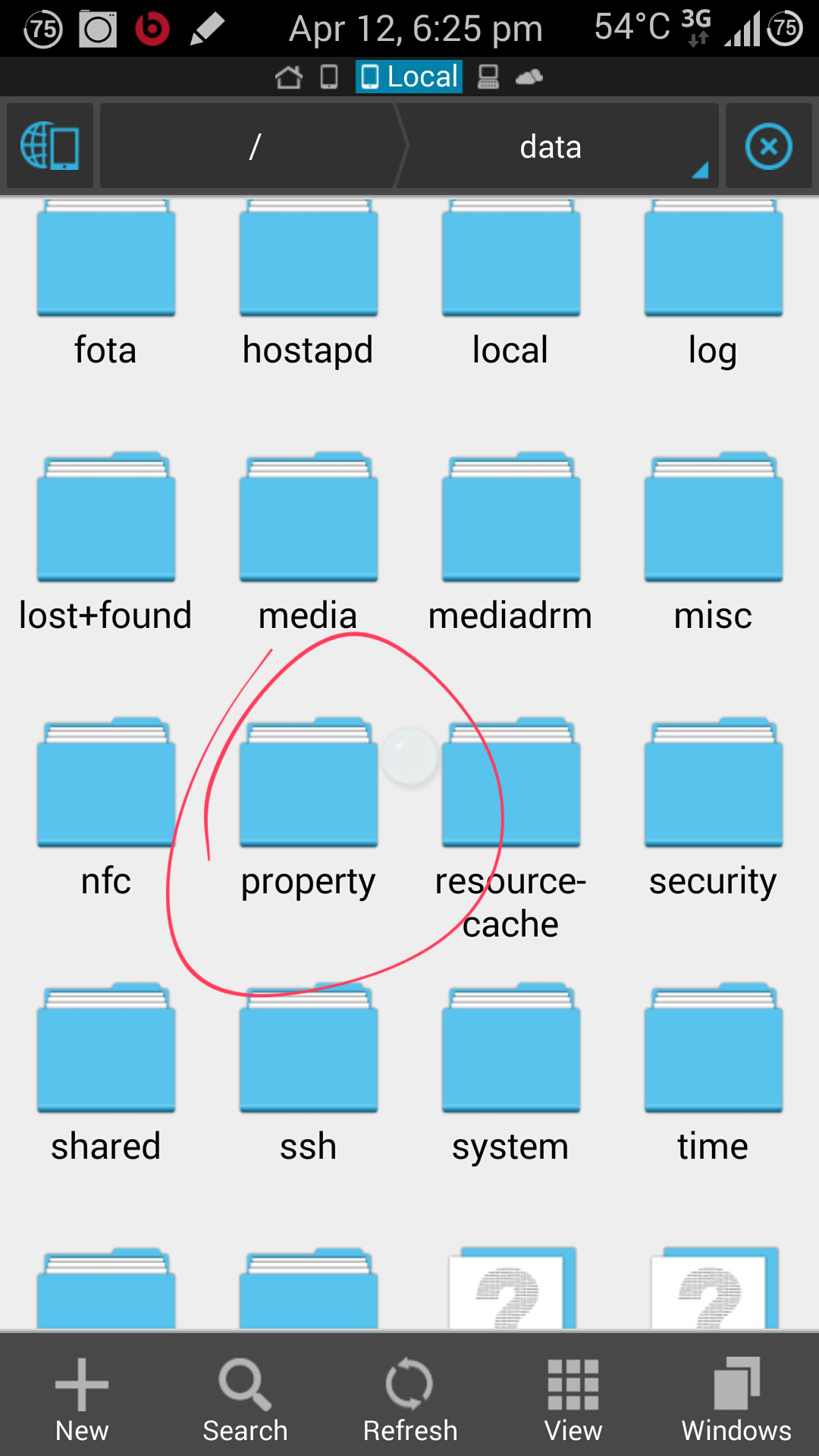
  • Next Open the “Property” Folder

2014-04-12 12.56.05

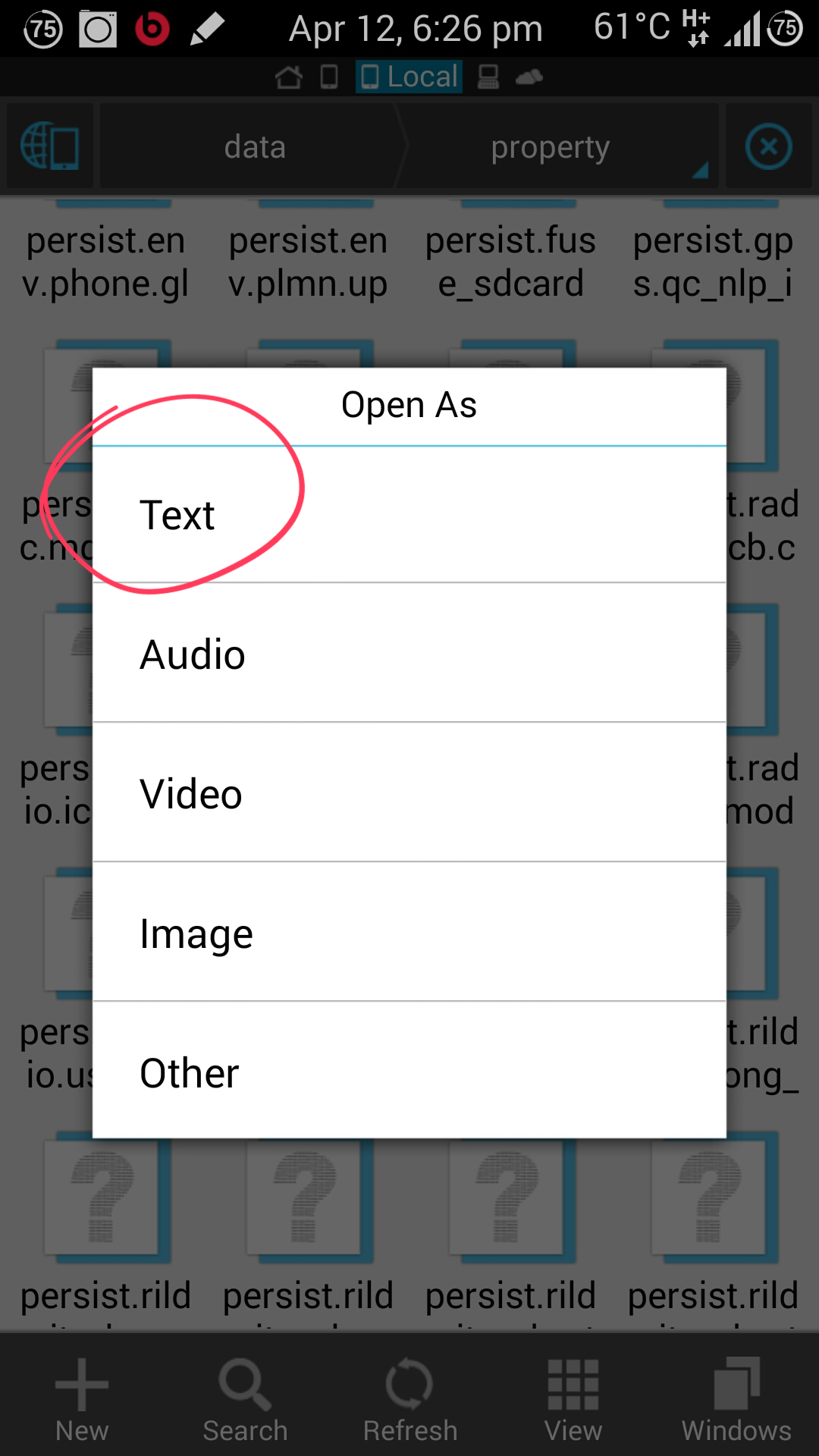
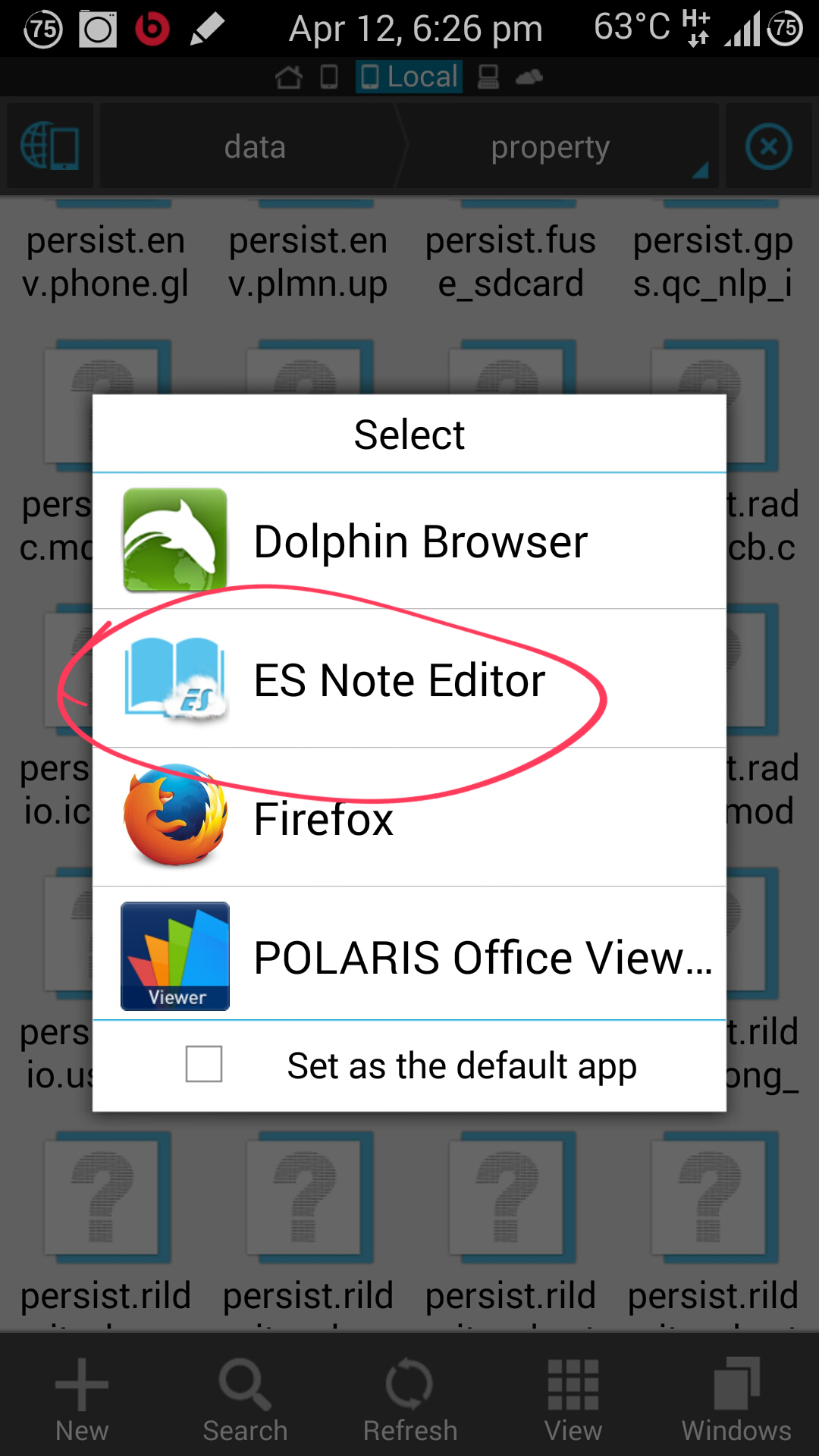
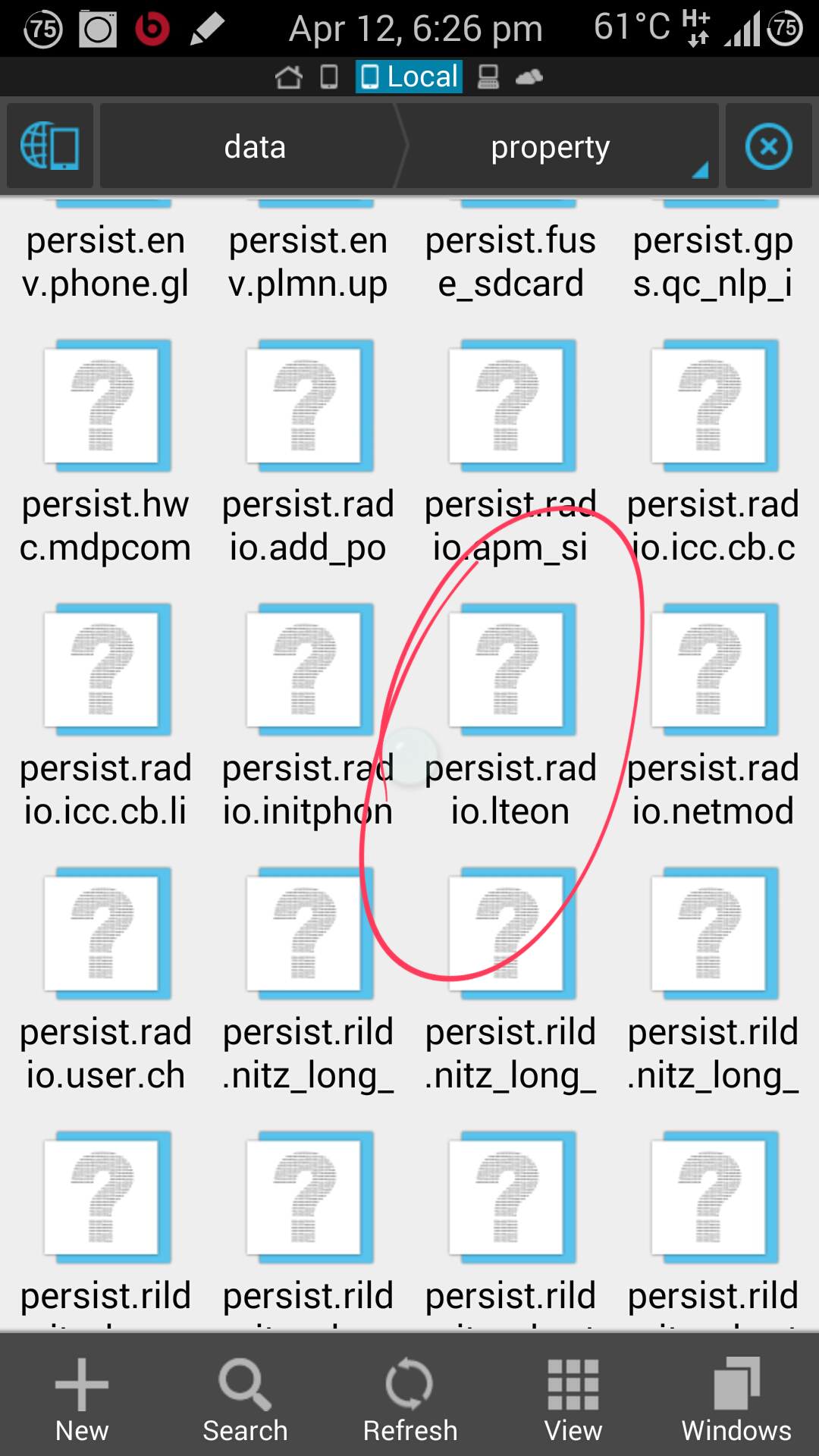
  • Now find the file named, “persist.radio.leton” and open it.
2014-04-12 12.56.29

2014-04-12 12.56.42

2014-04-12 12.57.04

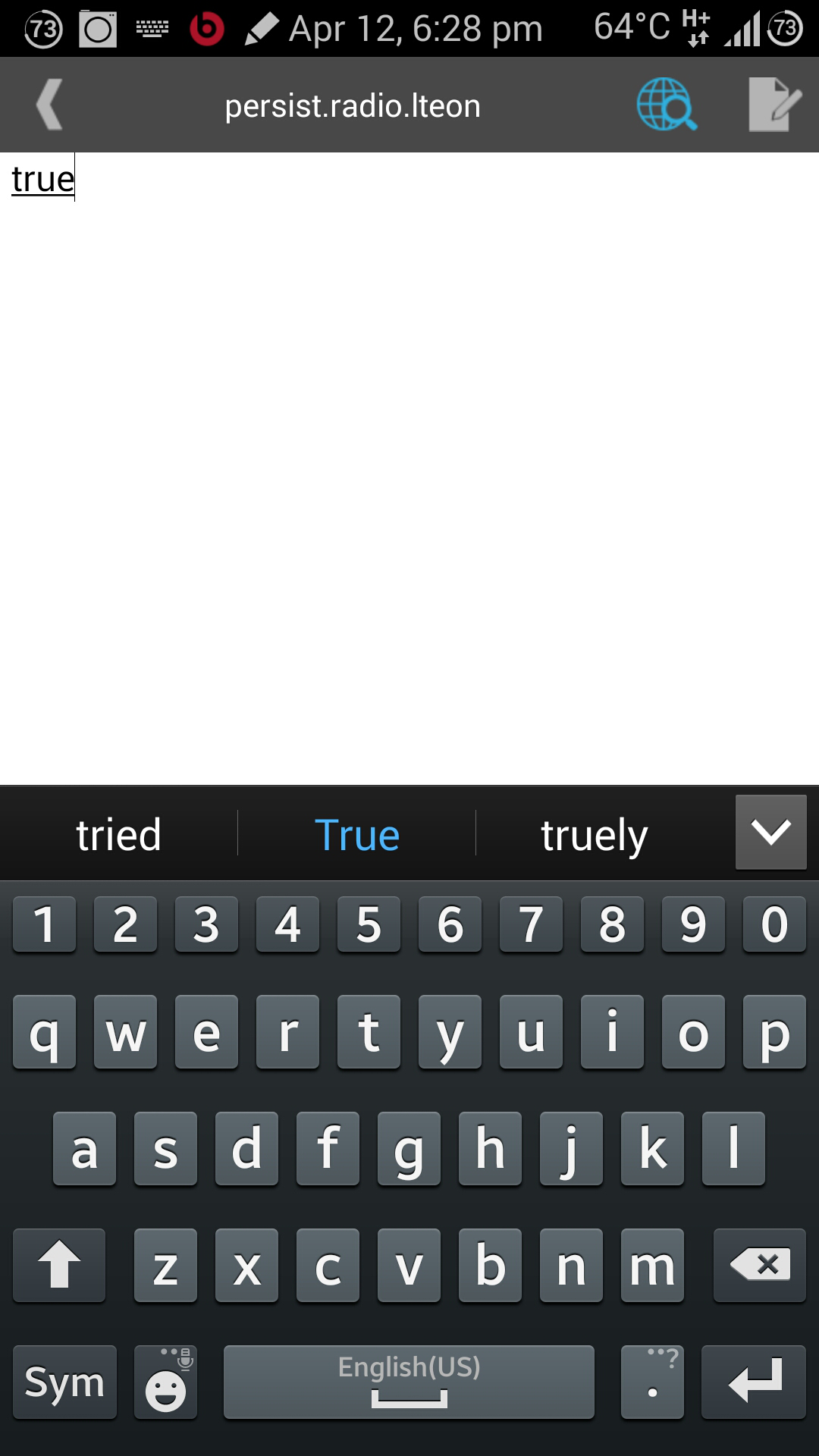
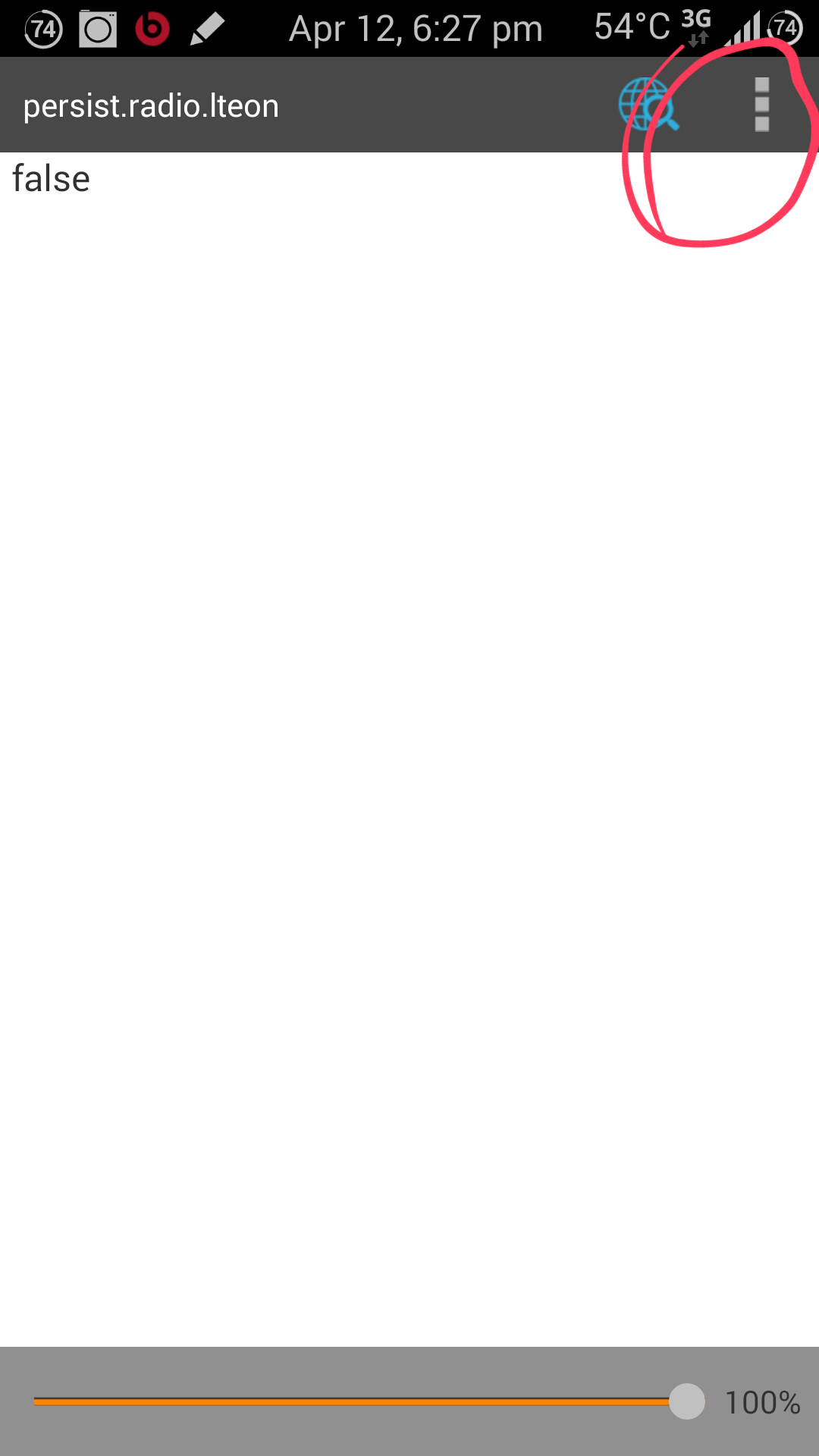
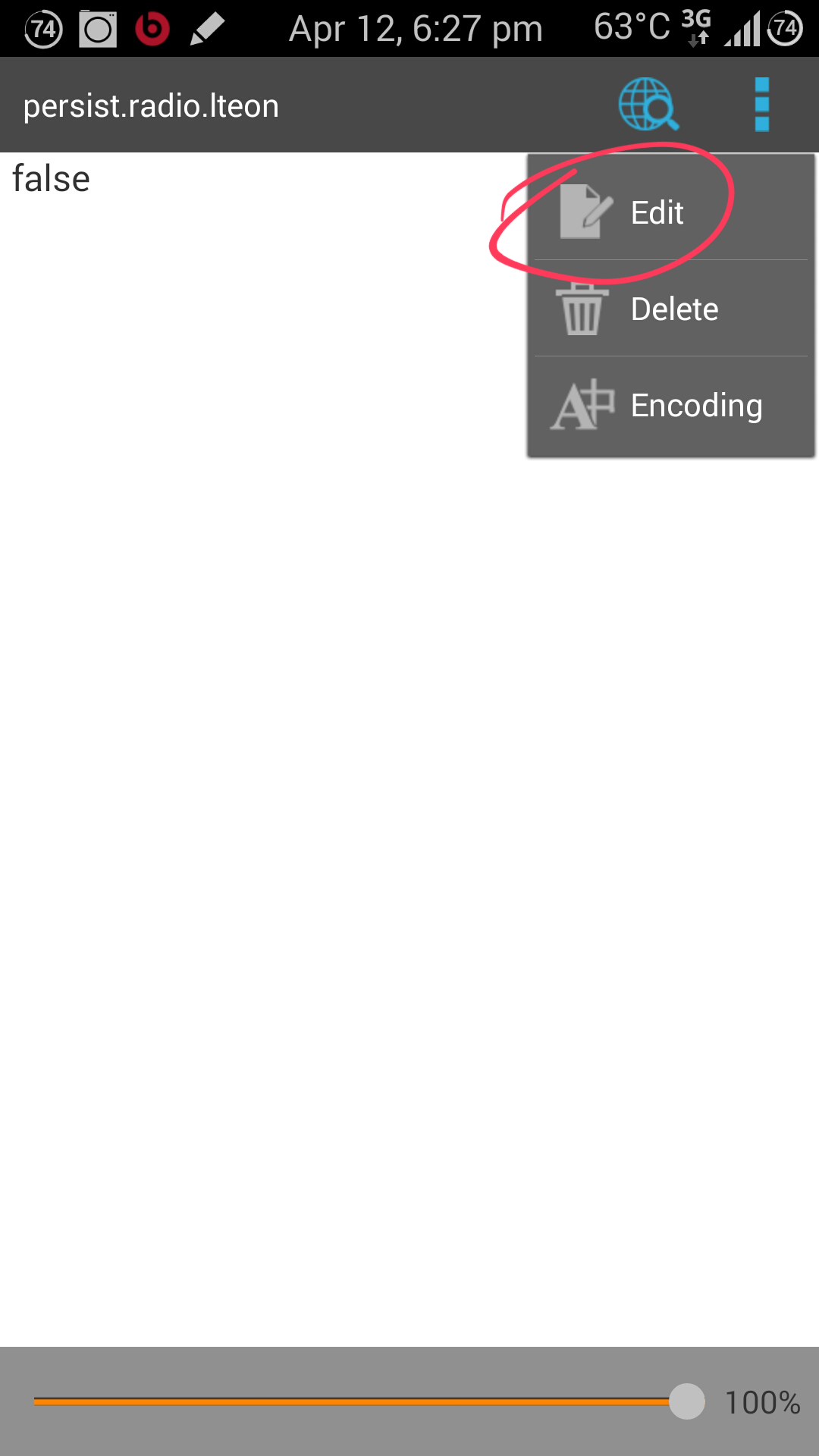
  • Now it will say “false”, so you have to remove it and change it to “true”. (Make sure to use lowercase letters)
2014-04-12 12.57.46 2014-04-12 12.57.55 2014-04-12 12.58.11

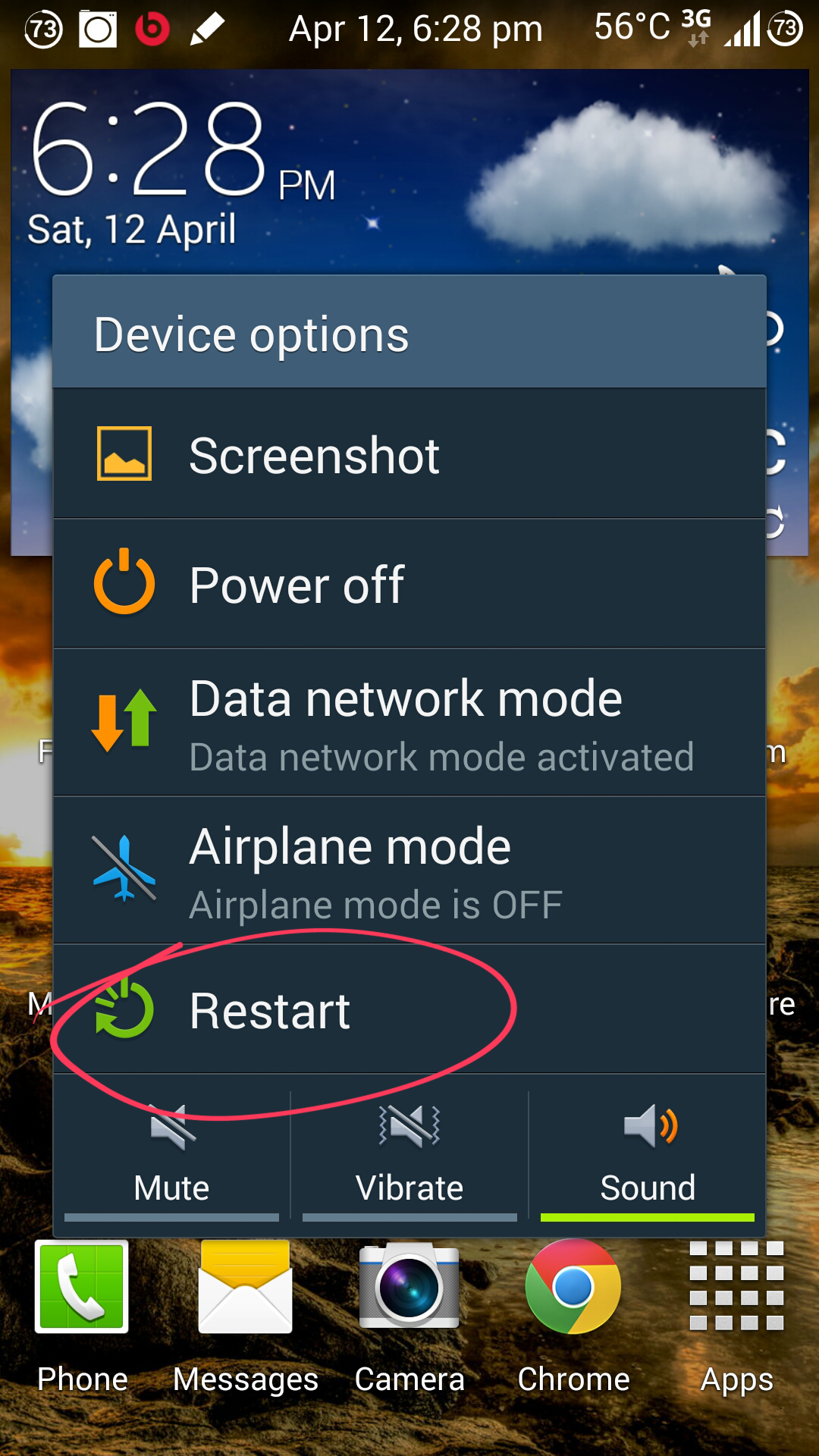
  • Now save it and Restart your Phone.

2014-04-12 12.58.56

Now you will see the 4G Option in Settings, under Mobile Networks.
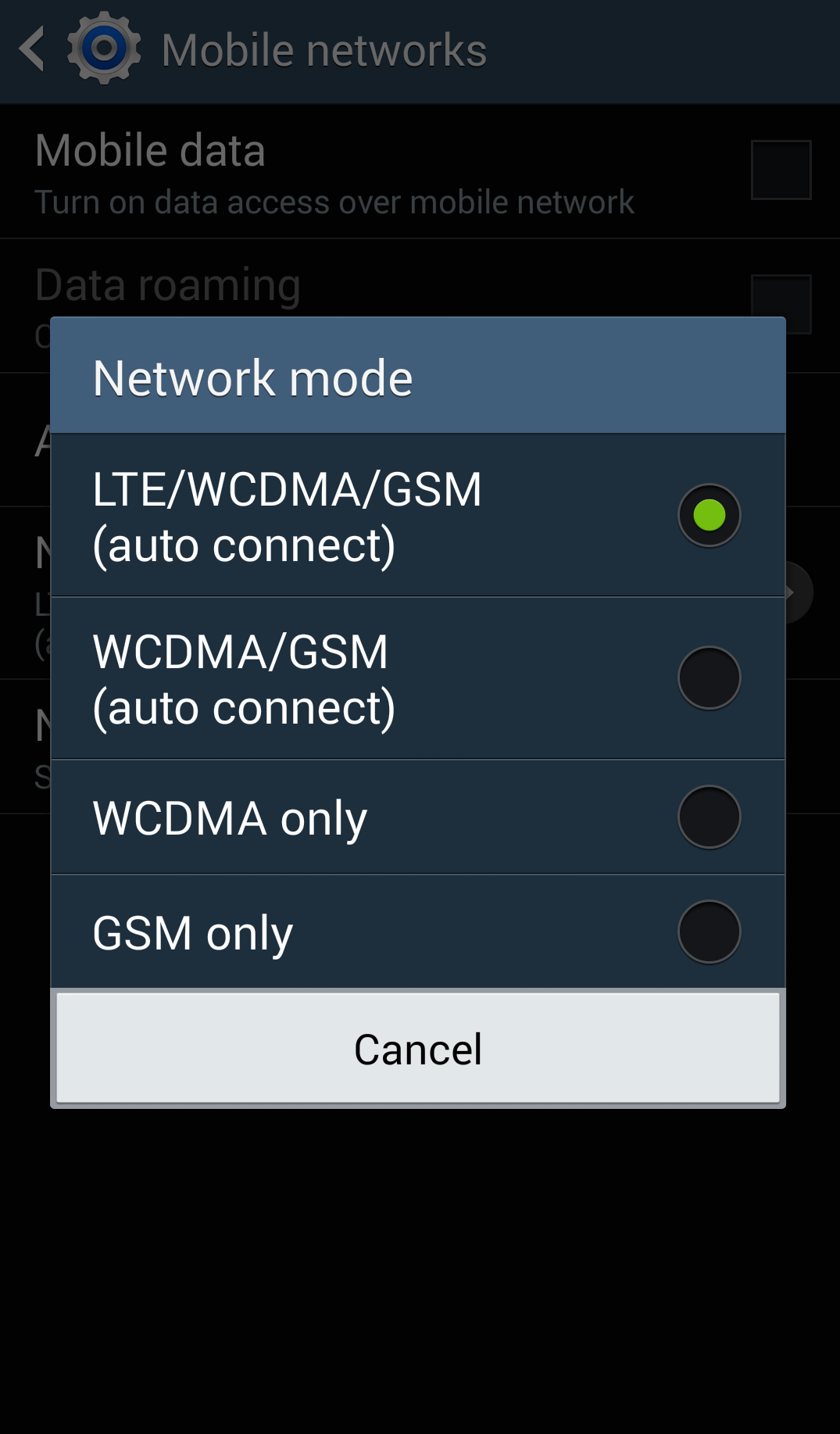
2014-04-12 16.17.45

You can now use 4G, if it is availble in your Area.

Credits – I Would like to Thank Praveen De Soysa for telling me about this fix.

So if you’re having a Samsung Device which isn’t showing the 4G option, by using this method you can get it to work. Give it a shot and let me know how it goes down below in the comments section.


Total
0
Shares
Share 0
Tweet 0
Pin it 0
Related Topics
  • 4G
  • Fix
  • Galaxy Note 3
  • How-To
  • Samsung
  • Working
Banu

I'm Banu. I also go by as "Andro Dollar". I am a passionate tech geek born and raised in Sri Lanka who likes to do creative things and look at things differently. I'm a risk taker and a perfectionist. If I'm doing something, I'll do it right! That's my Moto.

Previous Article
heartbleed

UPDATED : EXPLAINED : The Heartbleed Bug and How you can protect yourself

  • Banu
  • April 12, 2014
View Post
Next Article
30-Second-Charging-Smartphone-537×281

A New Battery Technology that Charges a Mobile Phone in 30 Seconds

  • Banu
  • April 12, 2014
View Post
You May Also Like
View Post
  • How To

HOW TO : Add a VPN to your web browser in 3 simple steps

  • Writer Andro Dollar
  • May 10, 2019
View Post
  • How To

How to install Android P on your Google Pixel 2, Pixel 2 XL, Pixel or Pixel XL

  • Banu
  • March 8, 2018
View Post
  • How To

HOW TO : Install Android 8.0 Oreo Beta on to your Huawei Nova 2i NOW

  • Banu
  • March 3, 2018
View Post
  • How To

Bring back the โ€œView Imageโ€ button on Google Images in less than 1 minute

  • Banu
  • February 19, 2018
screen-shot-2016-12-08-at-10-02-44-pm
View Post
  • How To

HOW TO : Take a screenshot on Android phones and tablets

  • Banu
  • December 8, 2016
fix-mobile-network-not-available-error-1000×875
View Post
  • How To

How To : Fix Android’s ‘insufficient storage available’ error message

  • Banu
  • November 28, 2016
Technicians working on electronics or motherboard
View Post
  • How To

HOW TO : Fix a PC that won’t start up

  • Banu
  • November 20, 2016
cable2-520×354
View Post
  • How To

HOW TO : Connect a laptop to a TV via HDMI, VGA and USB

  • Banu
  • November 14, 2016
9 comments
  1. Suhara Perera says:
    April 16, 2014 at 6:52 PM

    @Banu – Bro, this method works like a charm on my Note 3…Thumbs up for you man! Keep up the good work…All the very best!

    1. Andro Dollar says:
      April 16, 2014 at 7:35 PM

      Cool ! Glad it worked… ๐Ÿ™‚ Thanks and Stay tuned for more ๐Ÿ™‚

  2. Suhara Perera says:
    April 20, 2014 at 6:24 PM

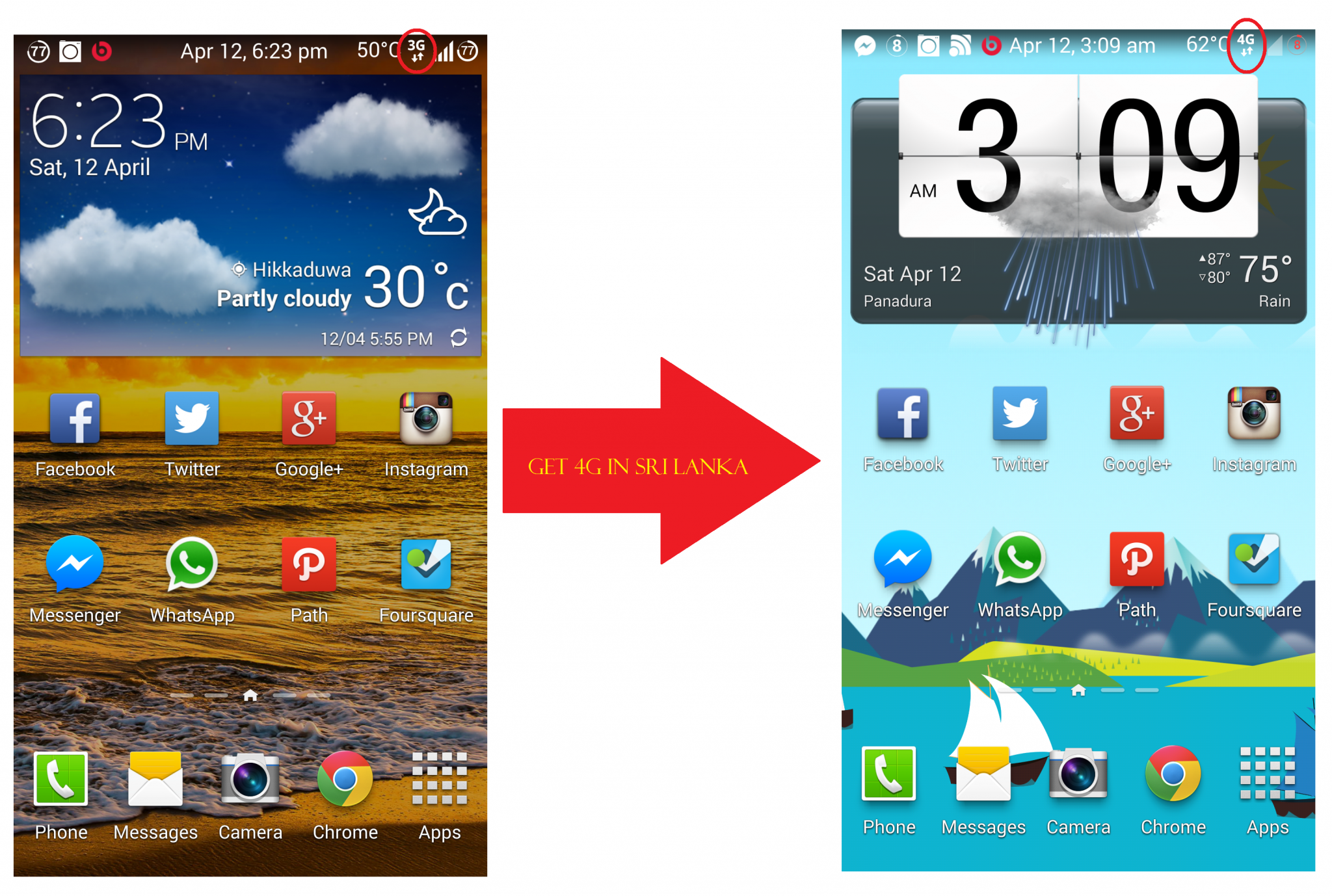
    Bro, just to know…in my Note 3 it shows as “LTE” on the top. Not as in your screenshot like “4G”(Regarding the above screenshot). Why is that?? o.O

    1. Andro Dollar says:
      April 20, 2014 at 6:29 PM

      That’s normal…. Sometimes 4G is also shown as LTE… Anyway checkout this interesting article from Android Authority about the differences… ๐Ÿ™‚

      1. Suhara Perera says:
        April 20, 2014 at 7:05 PM

        Which one bro??

        1. Andro Dollar says:
          April 22, 2014 at 2:30 PM

          http://www.androidauthority.com/4g-vs-lte-274882/

          1. Andro Dollar says:
            April 22, 2014 at 2:31 PM

            Also sometimes I also get 4G or LTE depending on the ROM, check the pics… This is on the Ported S5 Rom…

  3. Jayashan Kariyawasam says:
    February 1, 2015 at 11:13 AM

    nice bro… thanks alot… ๐Ÿ˜€

    1. Banu Athuraliya says:
      February 1, 2015 at 6:07 PM

      Cool! ๐Ÿ™‚ Stay tuned to Andro Dollar for more, and Spread the word

Leave a Reply Cancel reply

You must be logged in to post a comment.

Ebates Coupons and Cash Back
Andro Dollar Andro Dollar
  • Advertise on Andro Dollar
  • Videos
  • Gaming
  • About Us
  • Contact Us
  • Newsletter
  • Wallpaper
  • Privacy Policy
  • Terms and Conditions
Tech with over a decade of experience

Input your search keywords and press Enter.

Powered by Joinchat
Hello ๐Ÿ‘‹
Can we help you?
Open chat