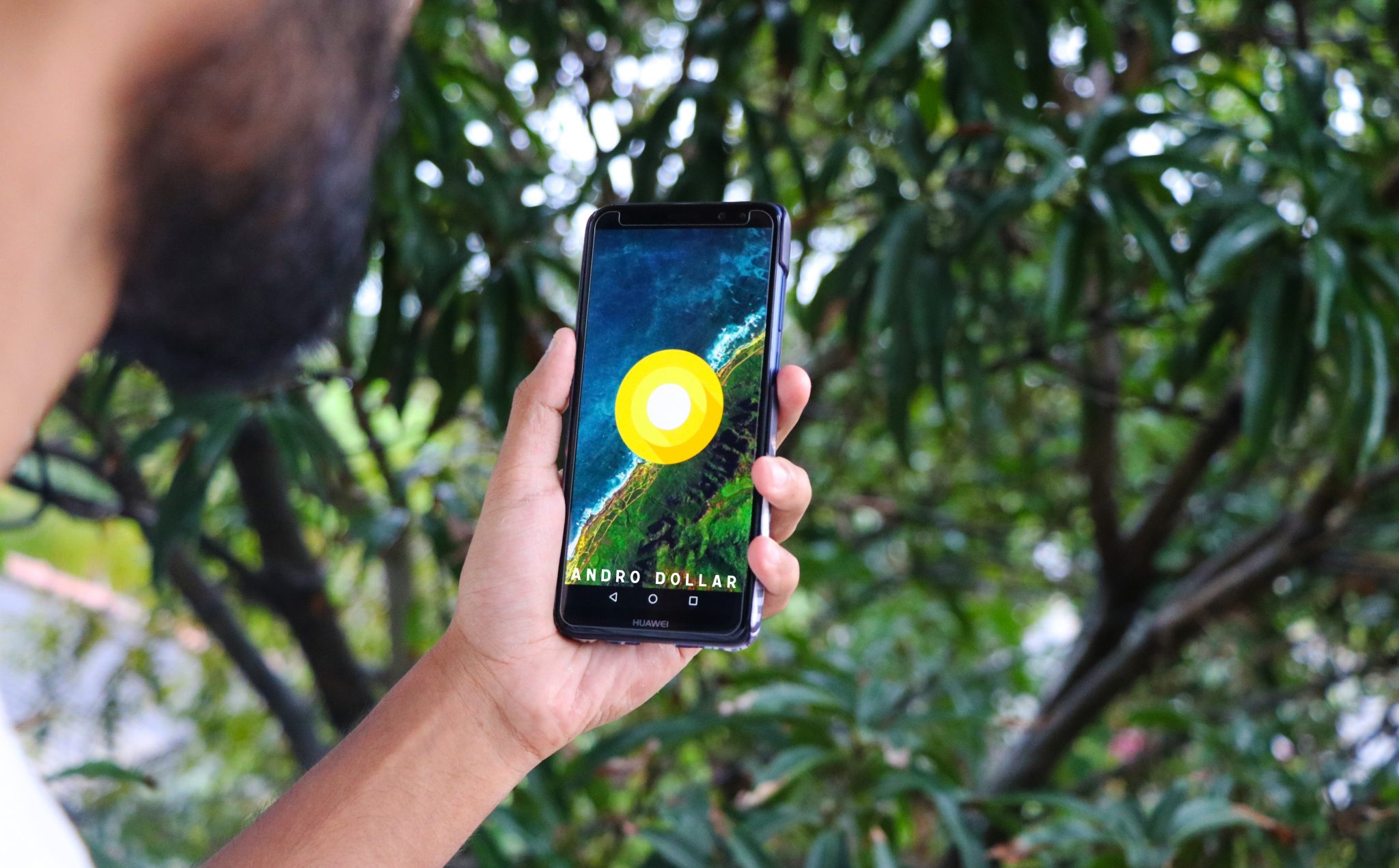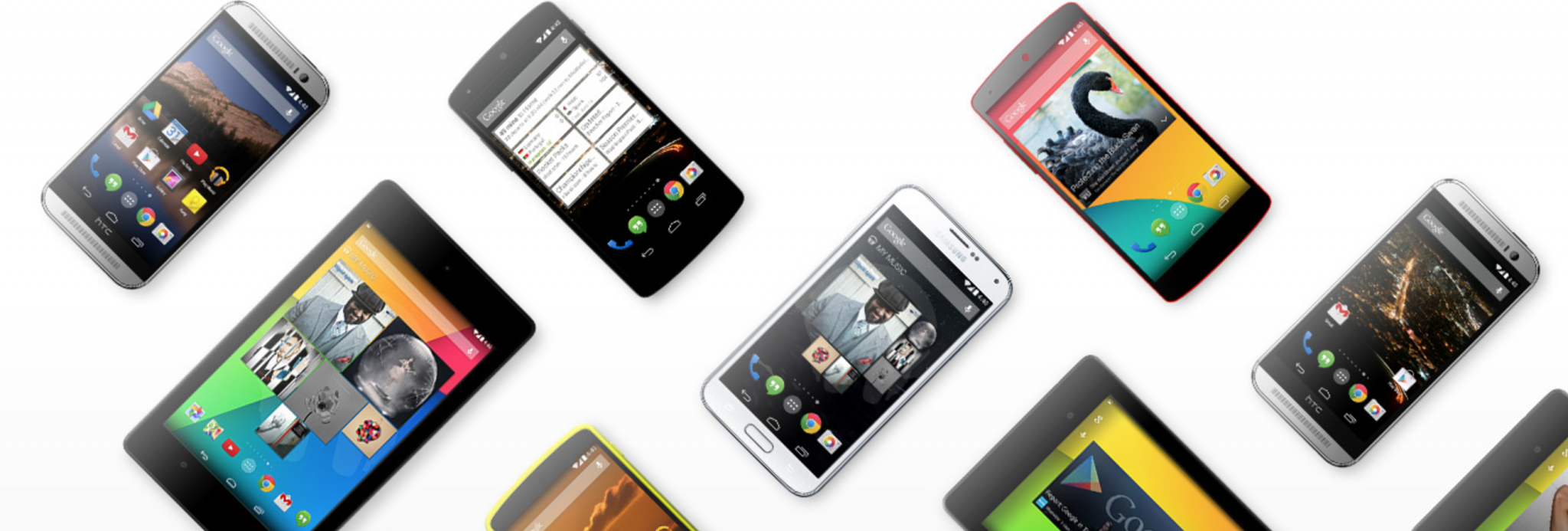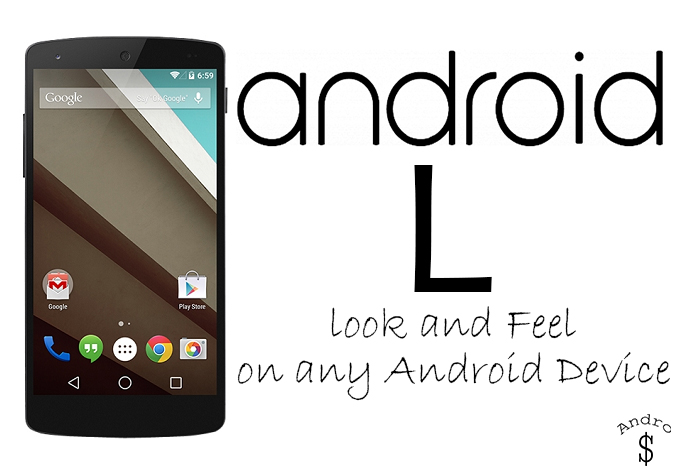
Android L was released in the form of a Developer Preview at Google I/O, and since then a lot of Non-Nexus users have been surfing the internet to find the same Developer Preview for their device. Unfortunately that is not possible, unless there is a port available; but you can do what I did, and get a similar look and feel on your device. So you must be wondering what I did to make my phone look and feel like Android L. That’s exactly what I’m going to explain right now. So let’s Go.
- First you need to make sure that you have a Rooted Android Smartphone running Cyanogenmod 11 or ANY Rom with the Cyanogenmod 11 Theme Engine Built in like C-Rom, Paranoid Android, Mokee, etc. (Get Cyanogenmod for your device here, if you have any problems leave a comment). Checkout my video on How to Install Cyanogenmod 11 on to the Samsung Galaxy Note 3 here.
- Next you need to get a Cyanogemod 11 Theme that looks like Android L. (I Prefer Nucleoid’s Android L Theme; However this is a Paid theme, so if you want something Free, use this). After you download the theme, you need to Open Settings, Open the themes, and Select the theme theme that you downloaded. This will change your Boot Animation, Ringing tone, Notification Tone, Wallpaper and Overall Look of your device.
- Next you need to download Google Now Launcher from the Play Store. Get it here. If it says not compatible in your country or device, download the Latest APK from here.
- Next you need to download the Android L Keyboard APK from Mega/ Dropbox or Dev-Host and install it and set it as your default Keyboard from Language and Inputs section Under Settings.
- To add to the experience, Get the Google made Applications to replace your stock Applications. This will make your phone feel more like a Nexus. Eg – Google Camera, Google Drive, Google Chrome, Google Keep, etc
- Next you need to make sure your Google Search and Google Play Services are updated on your device. To do this Open the Play Store and Check the Updates section. If Google Now isn’t working on your device, Check my tutorial on How to Fix it.
- Next download the Android L wallpaper pack from here. Then Set what you prefer as the Wallpaper.
- Get the Android L Ringing Tones, Notification Tones, Fonts, etc from this XDA Thread if necessary.
- Next get Xposed and Install Gravitybox (KK/JB). If your device doesn’t have a Navigational Bar, you need to get enable it with Gravitybox under Navigation Bar. (The buttons will look like Android L when you Apply the Cyanogenmod 11 theme)
- Next download the Heads-up Notifications Xposed Module or use this Android App.
- If you want to Spice up your Icons, use the Moonshine Icon Pack.
- If your device supports the ART Runtime, Turn it on Under Developer Options (Don’t use this if you are using Xposed). This will speed up your phone.
That’s Pretty much it. If you followed along properly, your device will look flawless now. If you think I have missed anything, don’t hesitate to drop a comment and if you have any doubts under standing any step, drop a comment or use the Chat Bar that’s at the Bottom Left Corner of the Website to contact us Directly.
Share this with your friends, and Spread the word about Andro Dollar. If you have anymore requests Contact me on Facebook/ Twitter/ Google+.