UPDATE : iOS 9 is now available as a Public Beta, and you can Download and try it for free by Following the instructions on my New Article here.
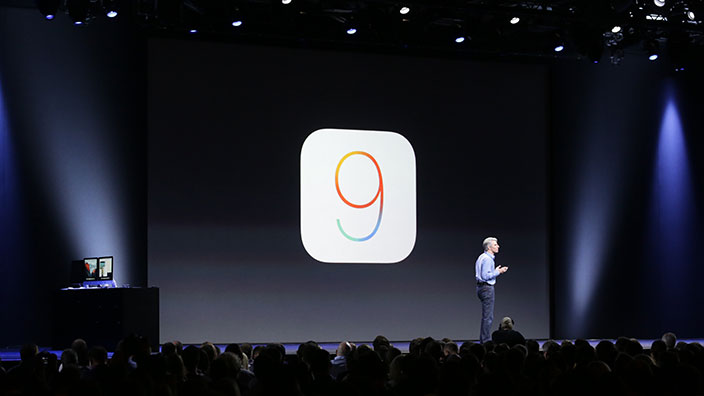
Apple has unveiled iOS 9 along with OS X El Capitan, and it is now seeding to Registered Apple Developers. If you own an iDevice, even you can install iOS 9 on your iPhone or iPad. By popular demand, I’m here to show you how to do that.
In order to be a registered developer, you need to pay Apple’s annual $100 fee (we do recommend it, if you want to get serious about making apps and publishing them on the App Store). That might be a bit too much for the curious people who just only care about the iOS beta.
There is a simple solution for them as well. If you have a developer account, you don’t have to worry, you can just install it. But if you don’t you need to register your UDID by paying a website that will do it for you. I Highly recommend, UDID Registration or IMZDL for this. It is very cheap for the basic account. So before you start you need to make sure you have this. This is important because apple has an activation check as soon as you install the new iOS. So if you don’t have your account registered you won’t be able to proceed. But when you have your UDID registered with a developer Account, you will be able to use iOS 9 without any problem. I have seen a lot of people who have failed at start-up as they don’t have the UDID registered. So don’t be like that, don’t try to do illegal things, just buy and register your UDID and then follow along. It will work 100% and this is totally safe.
PRE-REQUISITES
1) Device must be running iOS 8 and it should be a compatible device.
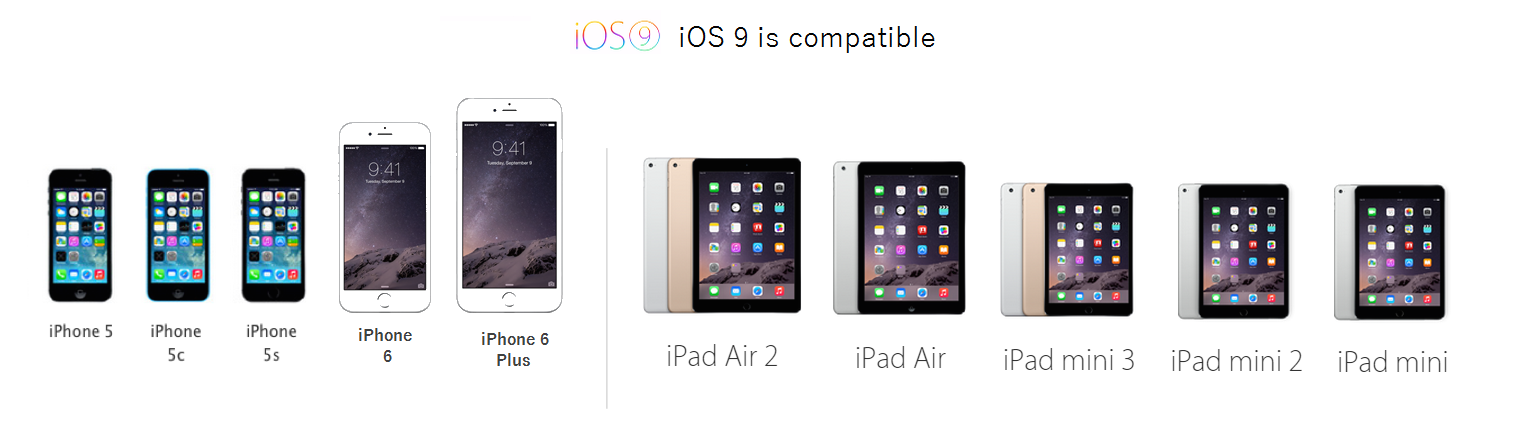
Apart from those device, even the iPhone 4s and iPad 2 are compatible with iOS 9.
2) You should have an Apple Developer or your device UDID has to be registered – Use UDID Registration or IMZDL. (Connect your iPhone to a computer via USB, open iTunes, go to the iPhone page, and click on the serial number to get your UDID.)
3) Note down your Device model and model number and download the firmware from MyBet.as or IMZDL and extract it using a unzipping program like WinRar. (Find your model here – iPhone | iPad)
4) Make sure you have updated iTunes on you PC to the latest version.
5) Make a Full Backup of your device through iTunes as you will be loosing everything (Don’t worry, as soon as you install you can restore them)
6) Make sure your device is around over 50% Charged.
If you have all completed all of the above, let’s get started.
HOW TO INSTALL
1) Open iTunes and Plug your device to your Computer.
2) Now Press SHIFT on your keyboard (ALT/OPTION on Mac) and press on UPDATE on iTunes.
3) Now select the .ipsw file that we downloaded.
4) Now be patient and let it continue. Once the installation is done, you can restore your previous files back to your iPhone.
5) Enjoy
That’s it guys. You are now Running iOS 9 on your iDevice. How Easy was that huh? Don’t forget to hit that like button if you found this useful. Don’t forget to share this with your friends so that they can also get the latest from Apple. Finally if you installed iOS 9 on your device let me know how it is, and what you think about it.
WARNING – This is for Educational Purposes Only. Whatever you do with your phone, you do that entirely on your own risk and you have full responsibility for the consequences. The author can’t be responsible for any damages of your phone!