Apple unveiled iOS 8 back at WWDC, and released it to the registered developers as a Beta. If you recall, I made a Tutorial on How To Install the iOS 8 Beta on any supported iDevice Previously. Now that Apple has made iOS 8 available for the Public, anyone can Download and Install it on to a Supported iDevice. Some of you wanted to know how to safely install iOS 8, and what you should do before updating; So here is my Tutorial on just that.
Firstly let’s talk about the Device Compatibility. iOS 8 can be installed on the following devices,
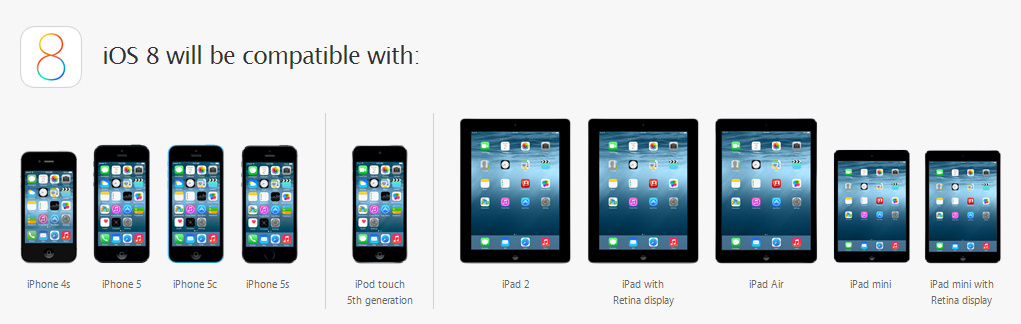
So if your device is on the list, you are good to go. There are 3 available method of installing iOS 8; One is to get the OTA Update Directly on your iDevice or the Other is to get the OTA Update from iTunes when the device is plugged in or the last method is to Manually Install it with iTunes by using a ipsw. Before you begin there are some Pre-Requisites.
PRE-REQUISITES
1) Your Device must be running iOS 7.x.x or later (Previous iOS 8 Beta or Gold Master).
2) You must have the latest version of iTunes (Version 11.4).
3) Do a Full Backup with iCloud or iTunes. If you are going to do a Clean Install of iOS 8, This way you will be able to Restore the Apps again to your iDevice after updating.
4) If you are going to Install it with the OTA Update, then make sure you have 5.8-6GB Free Space on your iDevice.
5) If you are going to manually install using the ipsw, you have to download the ipsw of your iDevice from the links given below. (Find your model here – iPhone | iPad)
- iPad Air 5th Generation (Cellular, WiFi)
- iPad 4 (CDMA, GSM, WiFi)
- iPad Mini (CDMA, GSM, WiFi)
- iPad Mini 2 (Cellular, WiFi)
- iPad 3 (WiFi, GSM, CDMA)
- iPad 2 (WiFi Rev A, WiFi, GSM, CDMA)
6) Just to be safe, Make sure your device is around over 50% Charged.
If you have all completed all of the above, let’s get started. You can pick the best option for you. Note that that since a lot of people are trying to download the iOS 8 update via a OTA Update, the download will take a Long Long Time. So I Highly Recommend you to Download the ipsw, and flash it manually.
OTA Update Directly from the Phone
1) Open Settings on your Compatible iDevice.
2) Click on “General”
3) Click on “Software Update” and you will be informed that a New Software Update is Available.
4) Download the Available Software Update and let it install.

5) Enjoy
OTA Update when plugged to iTunes
1) Connect your iDevice to your computer running the latest iTunes via USB cable.
2) Now You will be informed that a New Software Update is Available.
3) Hit the “Download and Install” button.
4) iTunes will automatically download and install iOS 8 on your iDevice.
5) Enjoy
Install Manually with iTunes using the ipsw
1) Open iTunes and Plug your device to your Computer.
2) If you want to Clean Install iOS 8 by Deleting all your Apps and Data, Hold SHIFT on your keyboard (ALT/OPTION on Mac) and click on RESTORE on iTunes or If you want to Update to iOS 8 by having your Apps and Settings the same way, Hold SHIFT on your keyboard (ALT/OPTION on Mac) and click on UPDATE on iTunes.
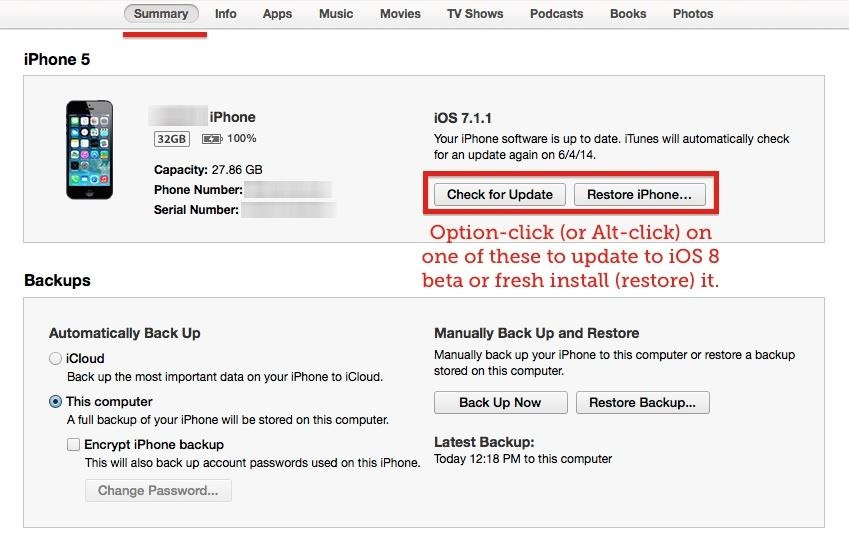
3) Now select the .ipsw file that we downloaded. (Eg – iPhone 5 file will be like – “iPhone5,2_8.0_12A4265u_Restore.ipsw)
4) Now be patient and let it continue. Once the installation is done, you can restore your previous files back to your iPhone.
5) Enjoy
That’s it guys. You are now Running iOS 8 on your iDevice. How Easy was that huh?
Don’t forget to hit that like button if you found this useful. Don’t forget to share this with your friends so that they can also get the latest from Apple. Finally if you installed iOS 8 on your device let me know how it is, and what you think about it down below in the comments section.
WARNING – This is for Educational Purposes Only. Whatever you do with your phone, you do that entirely on your own risk and you have full responsibility for the consequences. The author can’t be responsible for any damages of your phone!