UPDATE : Follow this method if you have an Android Lollipop Device.
If you recall, I did a Video Tutorial on How To get Google Now Working on devices that have the region restriction, and it seems like that doesn’t work on newer devices with the latest firmware that has the Updated Google Search App (Search V3+). So as it seems there is a new method to get Google Now cards to pop-up without Root Permissions or without doing a Factory Reset. By using this method you can enable Google Now cards in less than 5 Minutes and this is totally legal. So what are we waiting for? Let’s get started.
I will be demonstrating this on a Samsung Galaxy Note 3 with touchwiz, but It will be similar on Stock Android, or any other skin as well, so feel free to follow along, and if you have problem, don’t hesitate to contact me.
UPDATE : Google has updated the Google Search app to a New Version and on this, it has a separate section for Google Now Cards, so it might not work exactly as mentioned below, but it can easily be fixed by Uninstalling the Google Search App Updates, then Following the Steps given below. When the Google Now Cards are functional, you can update your Google Search to the latest version.
ORIGINAL ARTICLE : Before you begin, make sure all your apps are Updated.
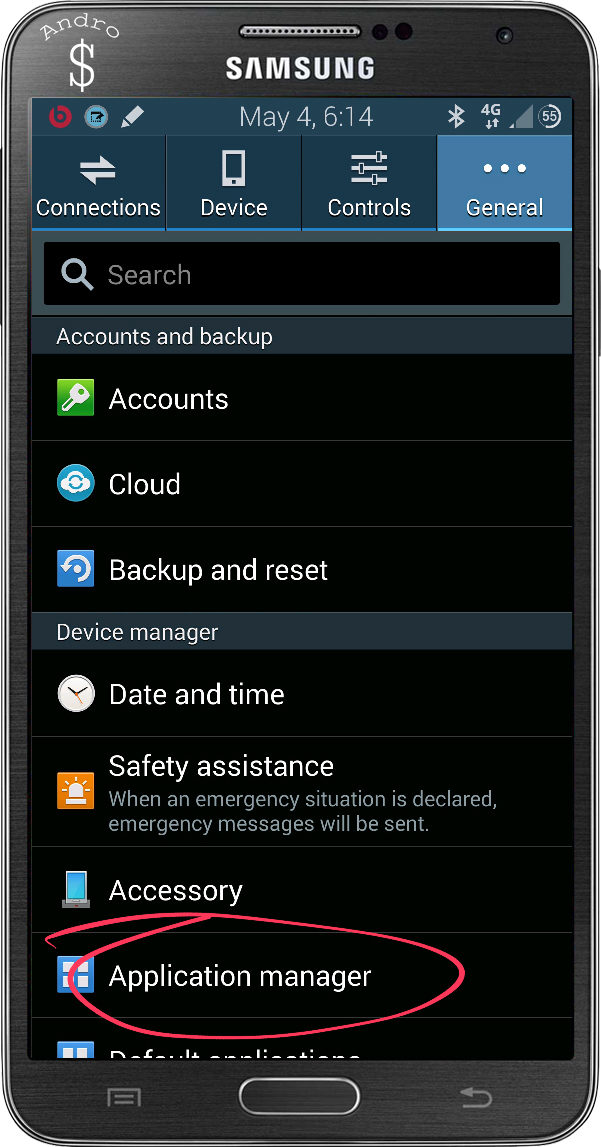
- First Open Settings & find the Application Manager.
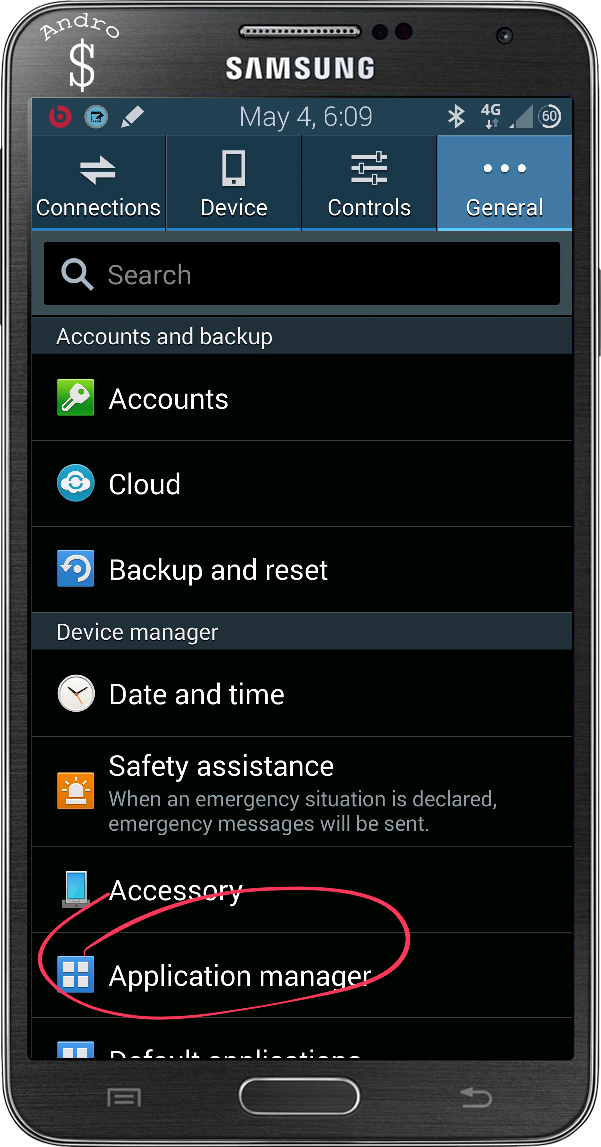
- Now swipe left till you get to the “All” Tab.
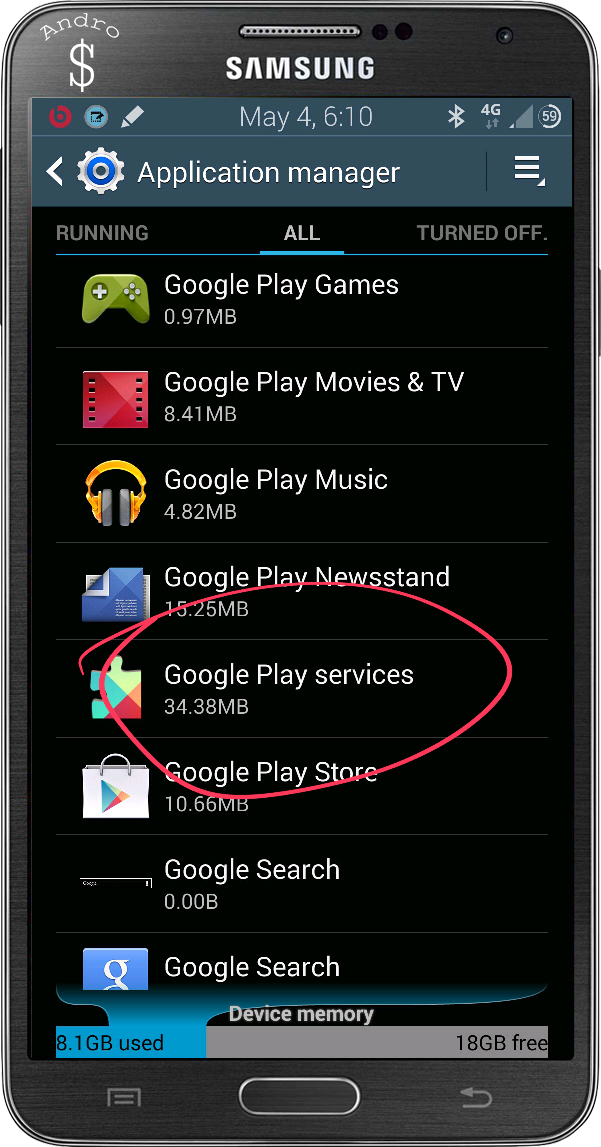
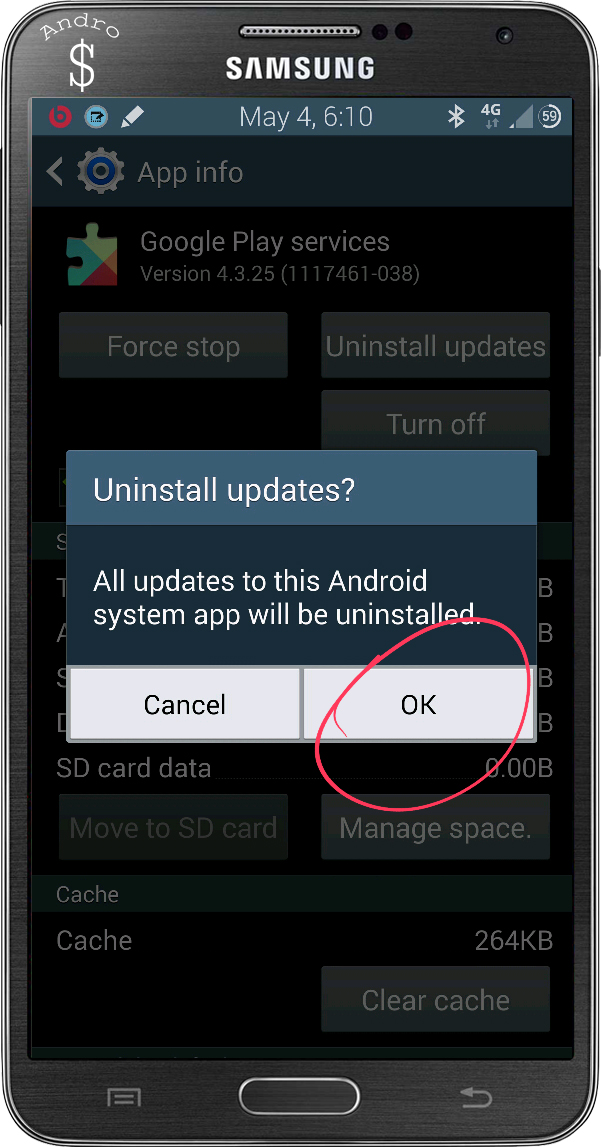
- Now Find Google Play services and select it.
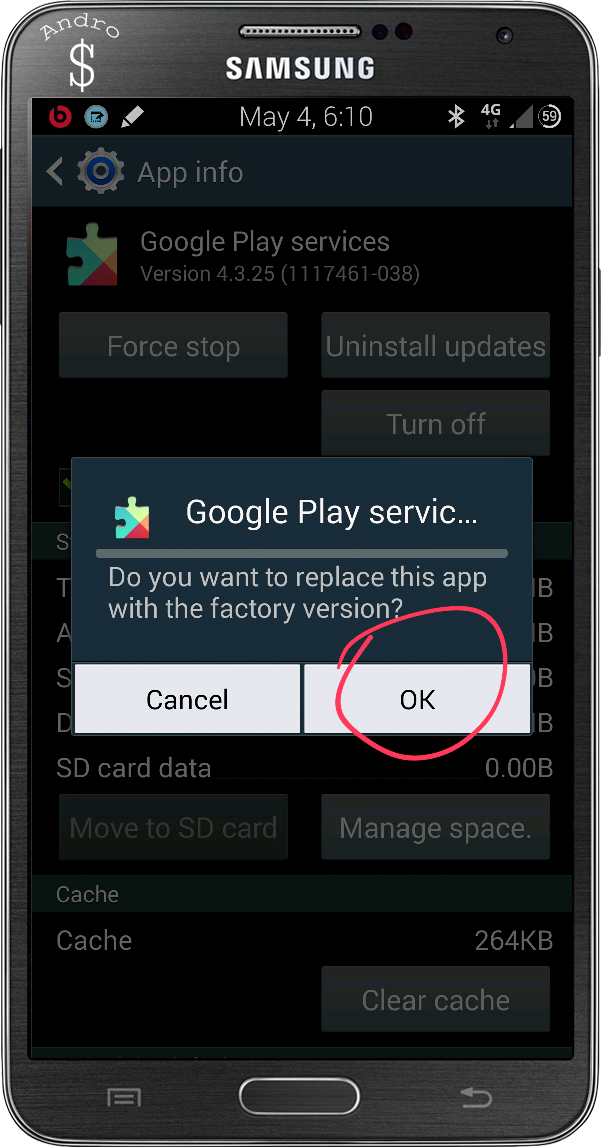
- Now hit Uninstall Updates, and then confirm by pressing Ok in the next pop up.
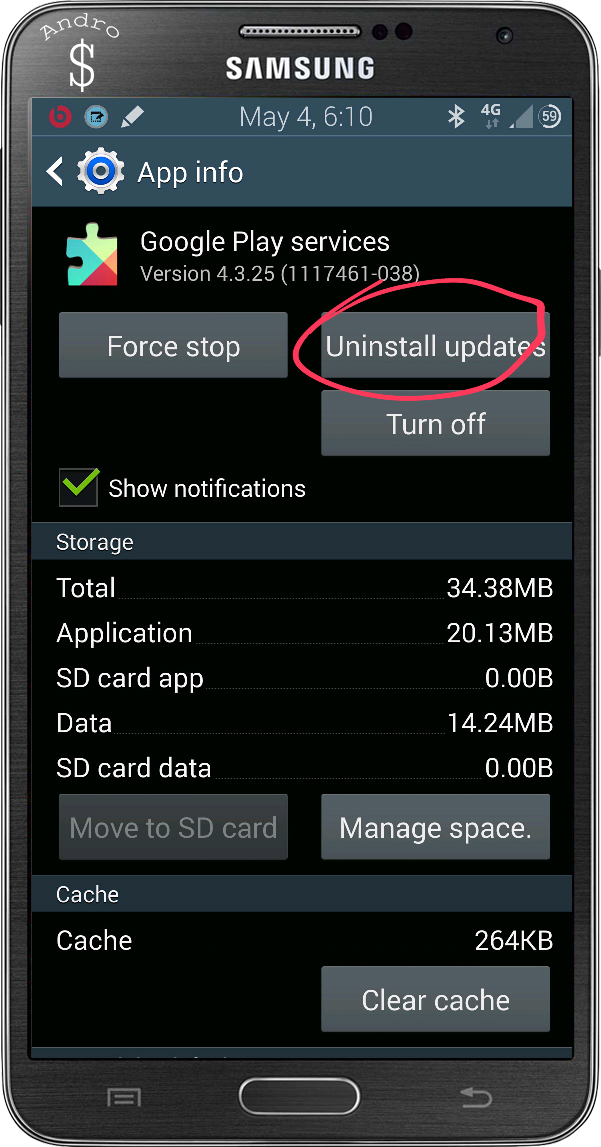
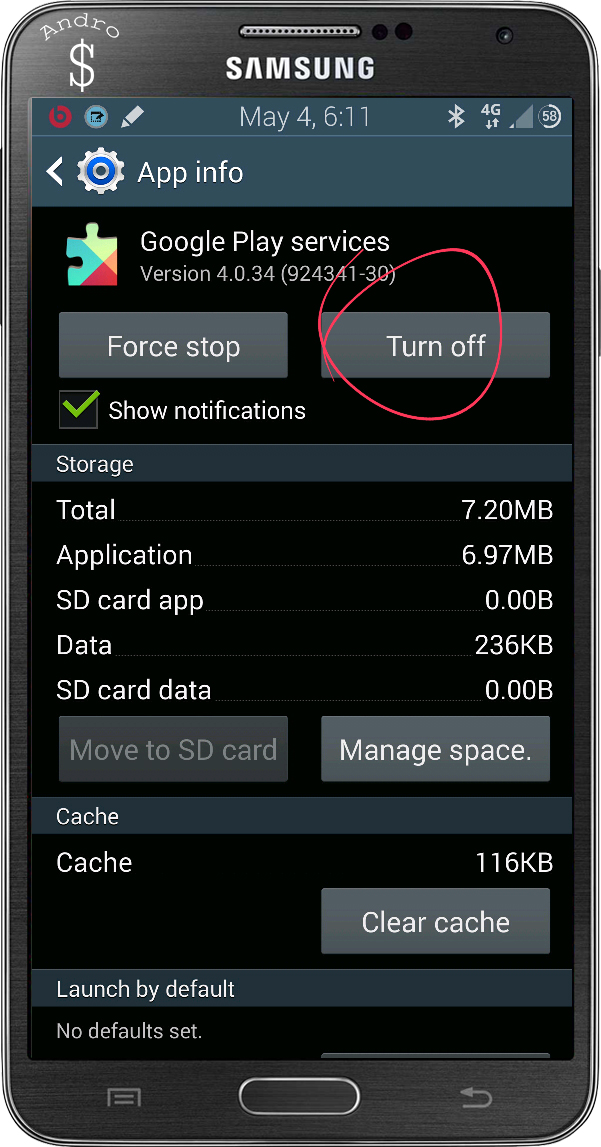
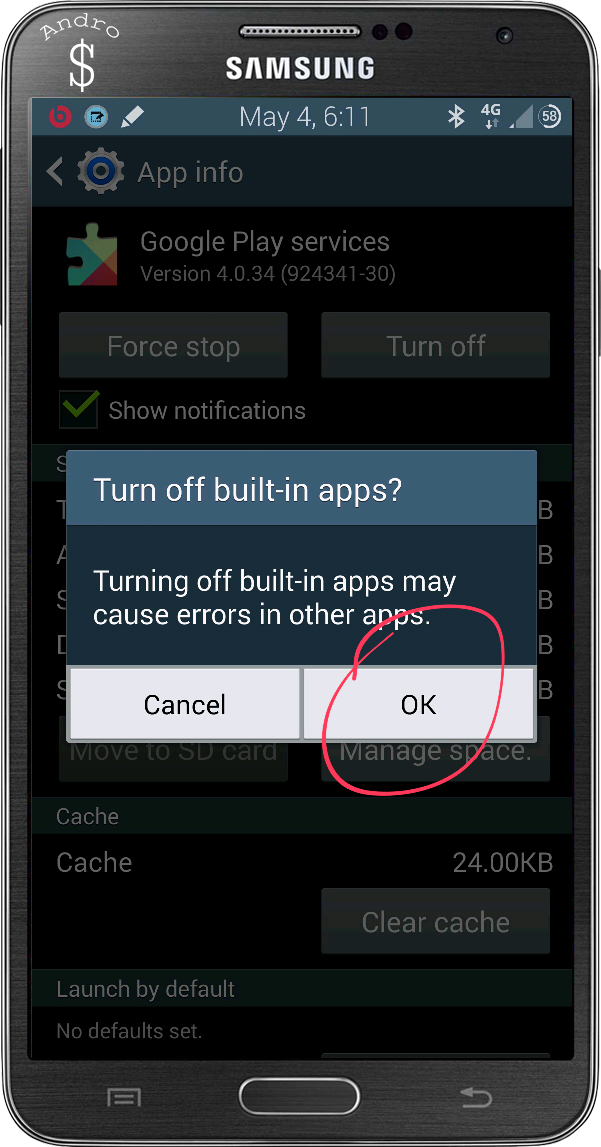
- Then select the Turn Off option.
- Next go back to main settings page and Find the Accounts Section and open it.
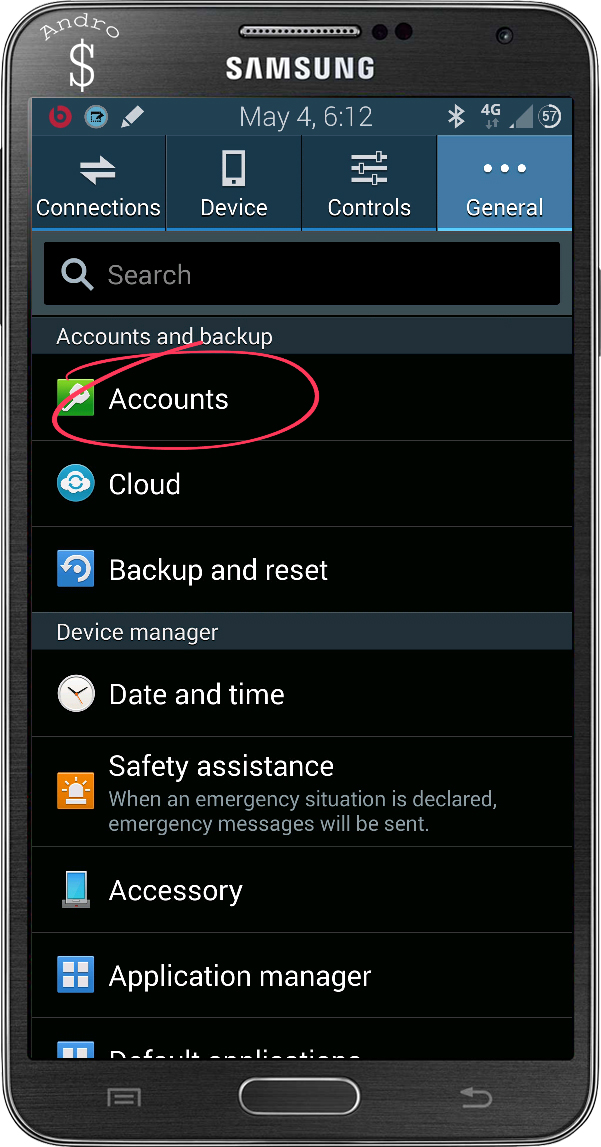
- Select the one that says, Google.
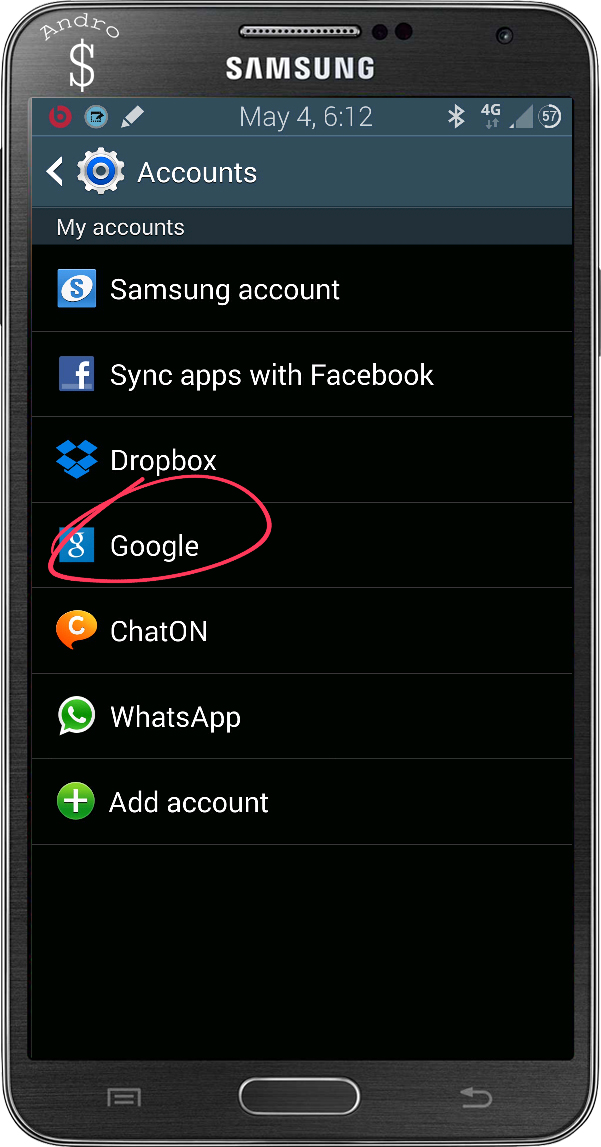
- Now hit on your email address up on top
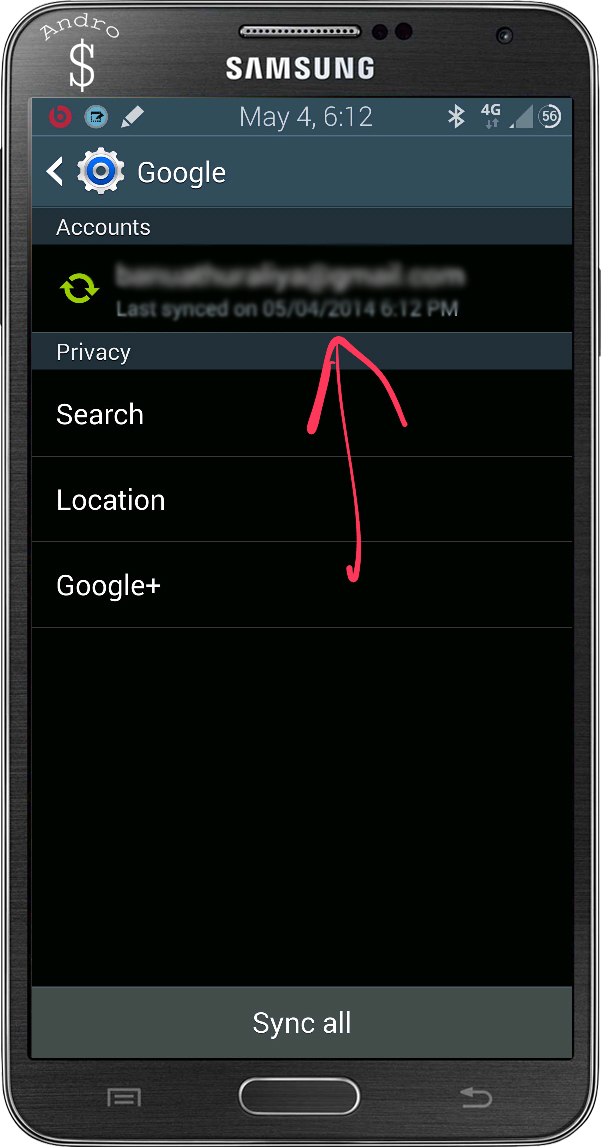
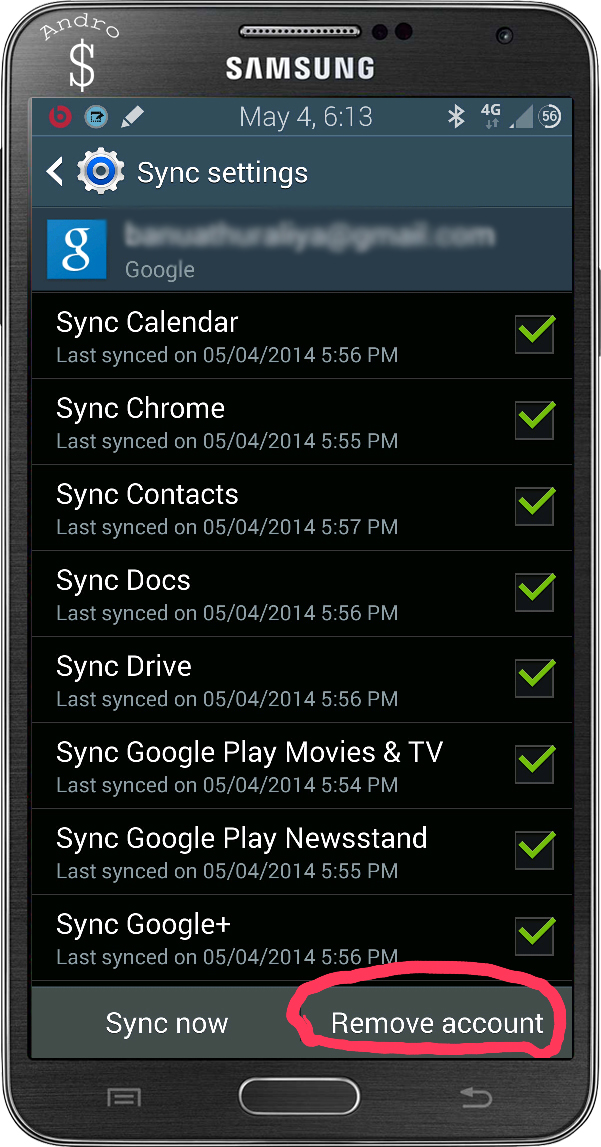
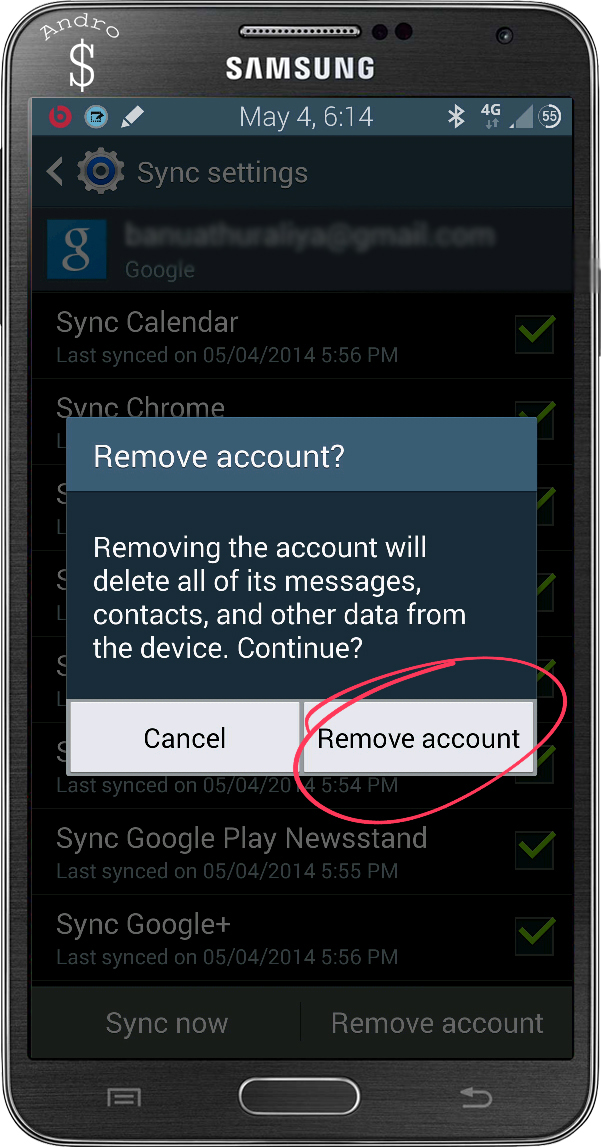
- Now select Remove Account and select Remove Account.
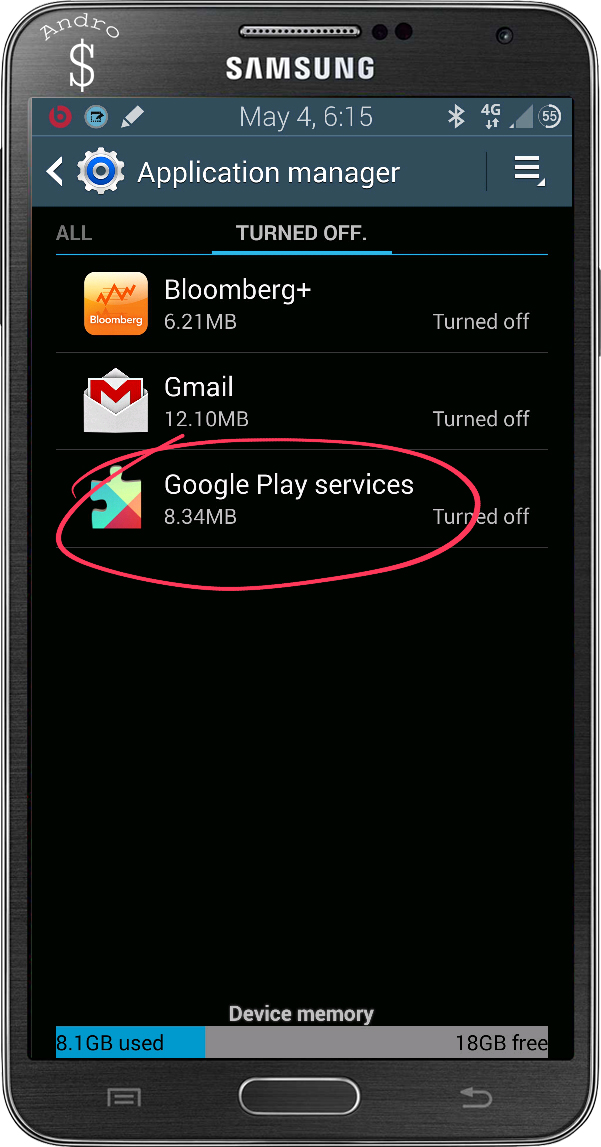
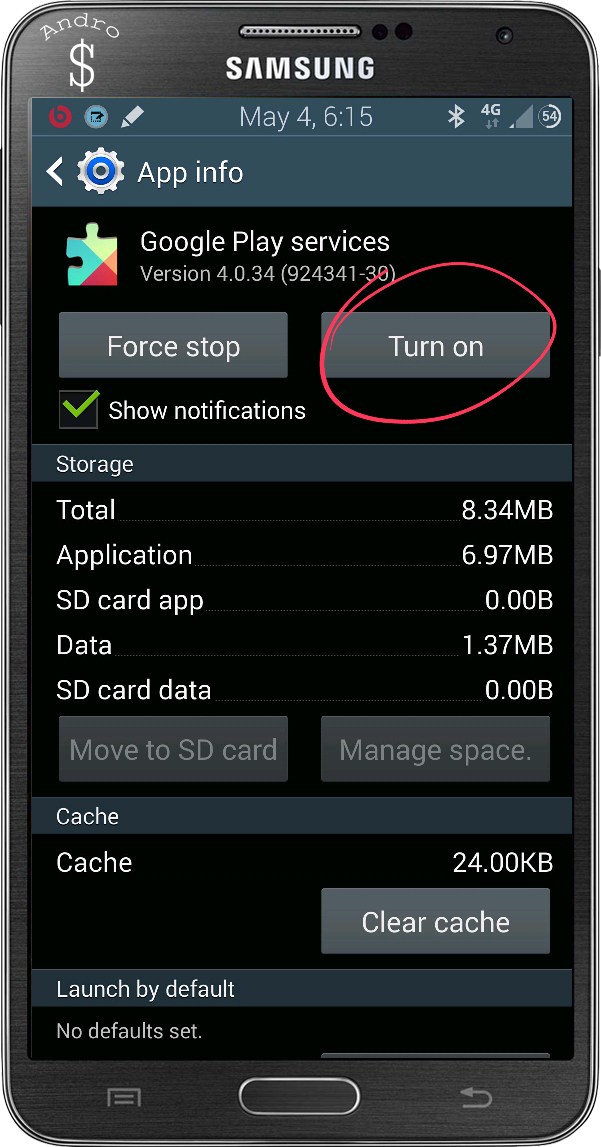
- Now go back to the Application Manager and Swipe back to the All Tab or Turned Off tab and enable Google Play services. (Do Not Update it yet)
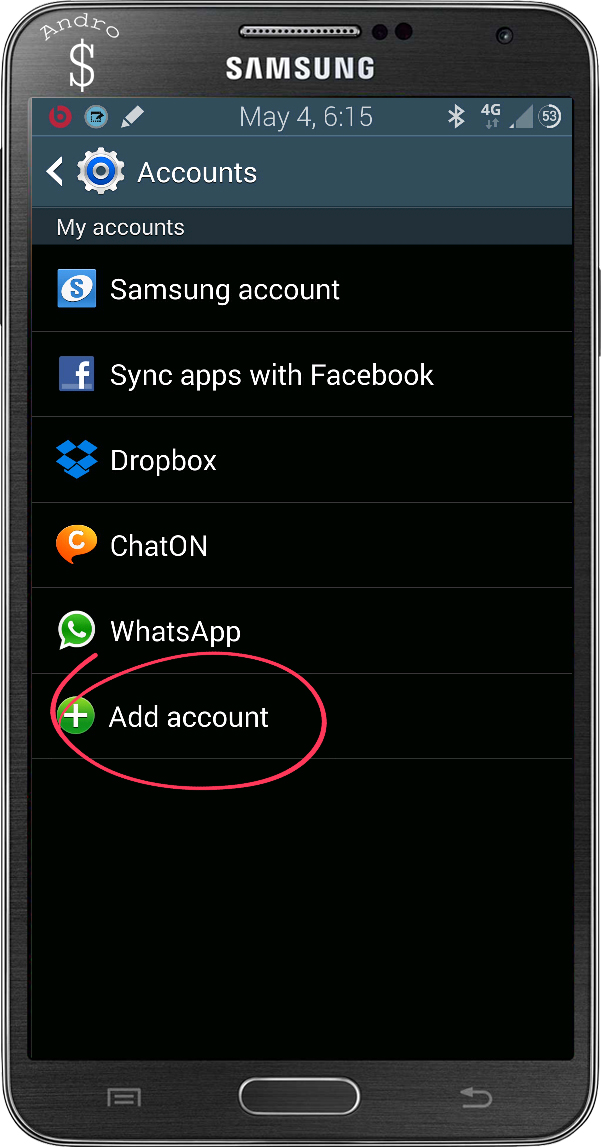
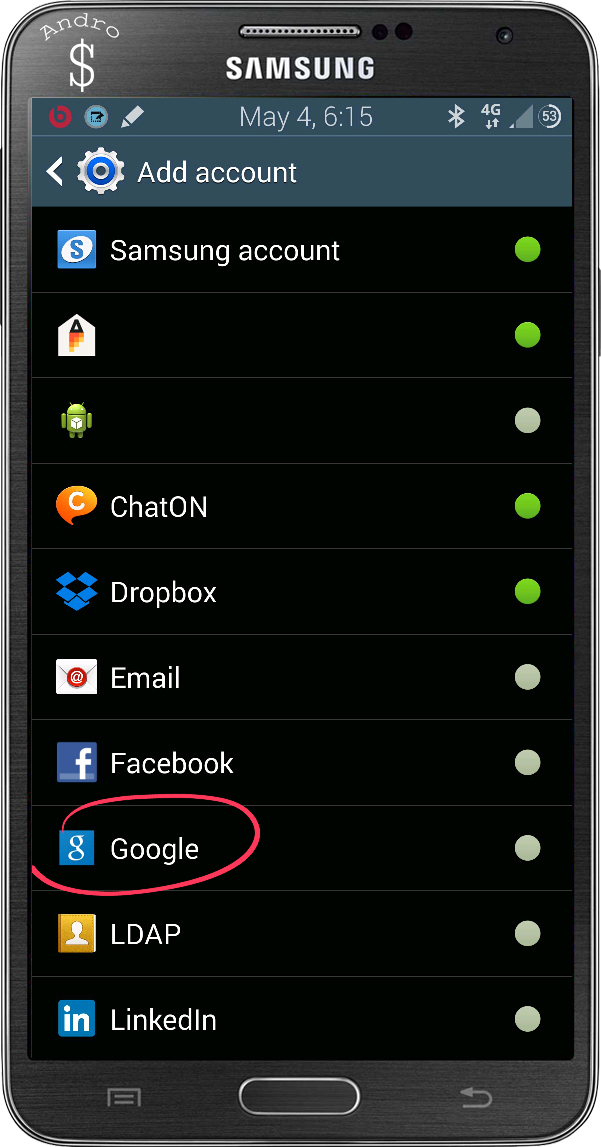
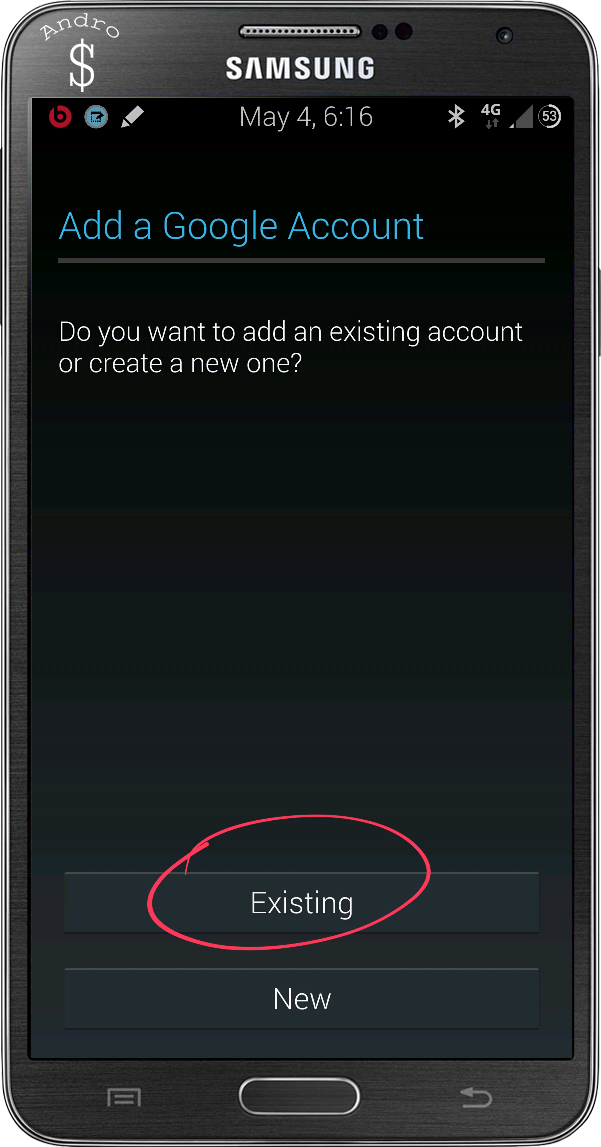
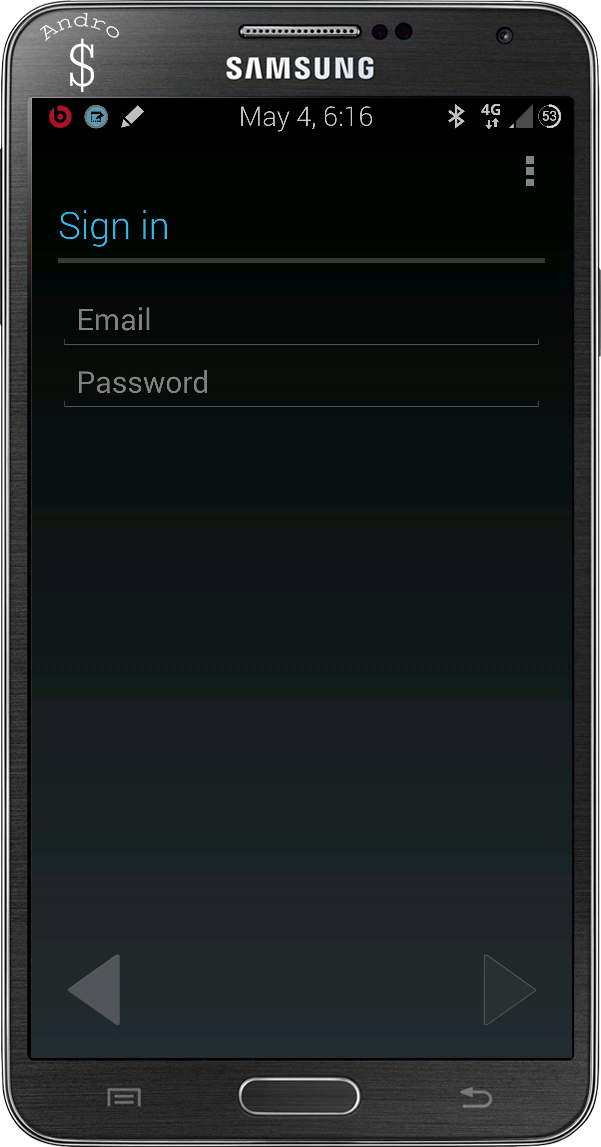
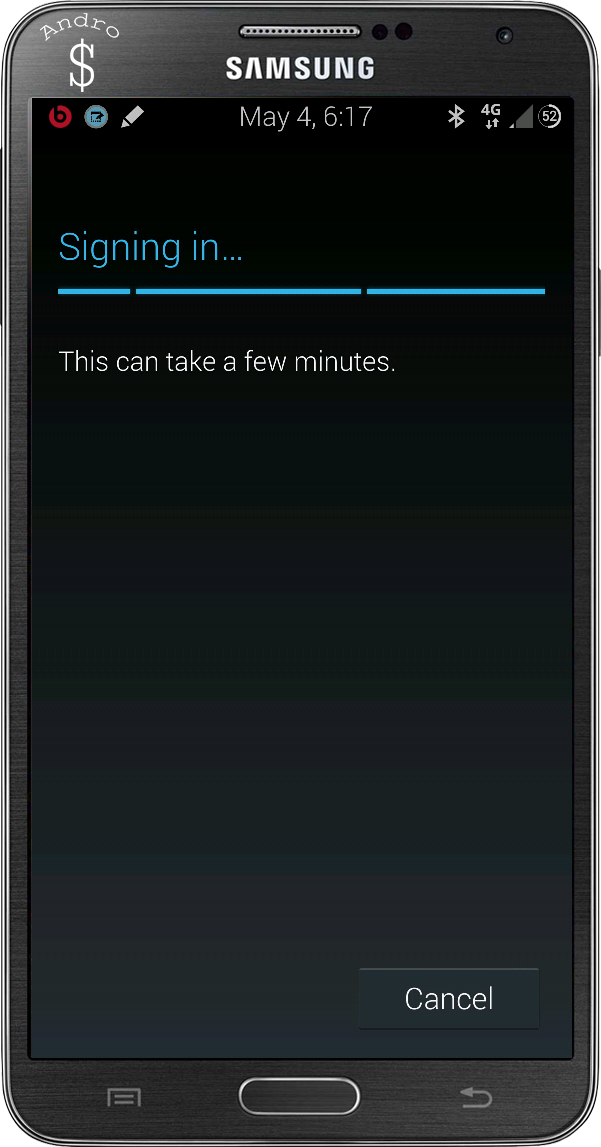
- Now Go back to the Accounts section once again, select Add Account and select Google from the list. Now Login as usual to your Google Account.
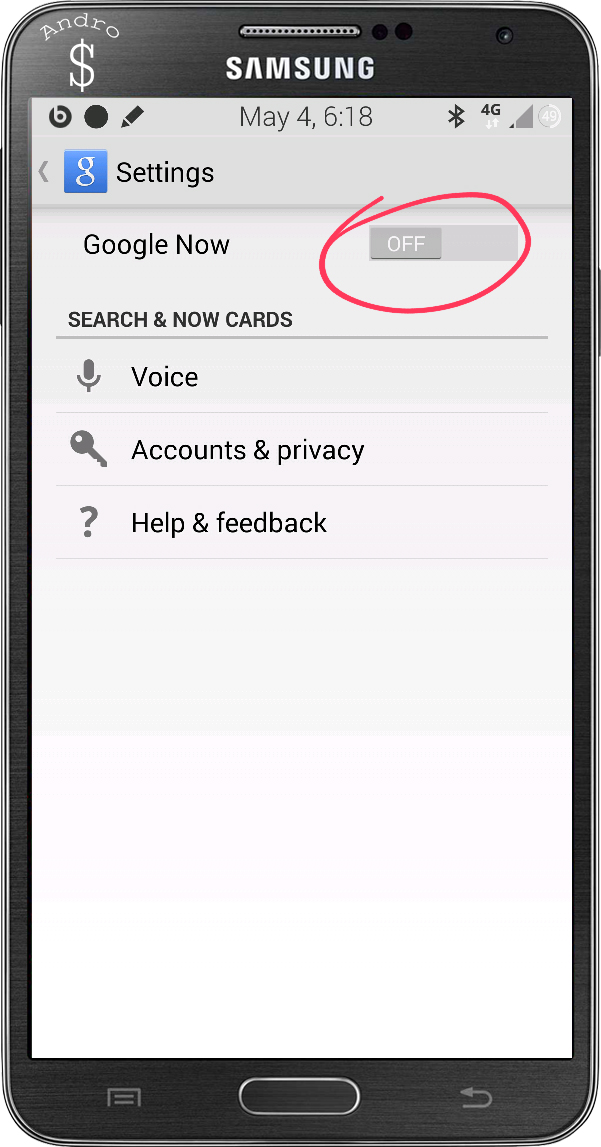
 After Logging In, Select the Google Account and then Select the Search Option.
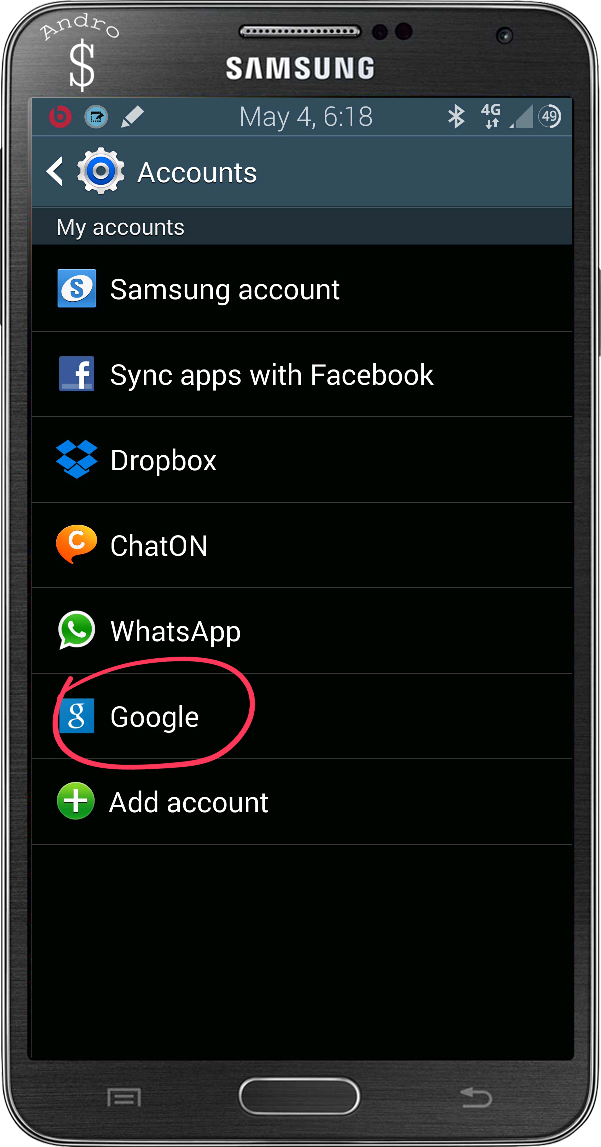

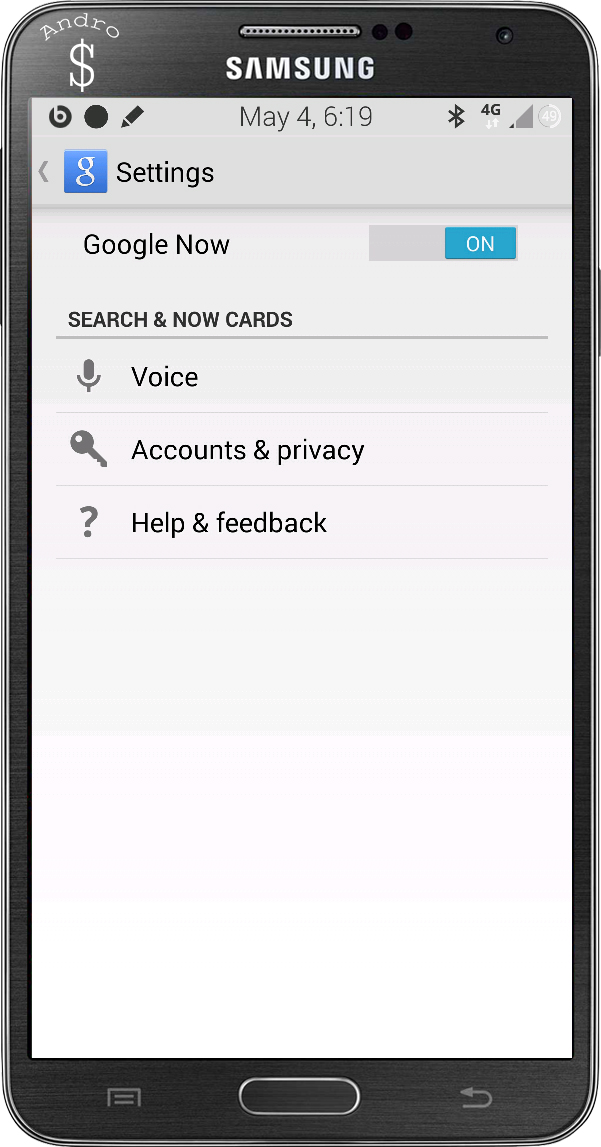
- Now Enable Google Now from the toggle.
- Now go back and open the Google Application (Google Search) from the App drawer. You will see this message on your screen. Now Hit Update Google Play Services.
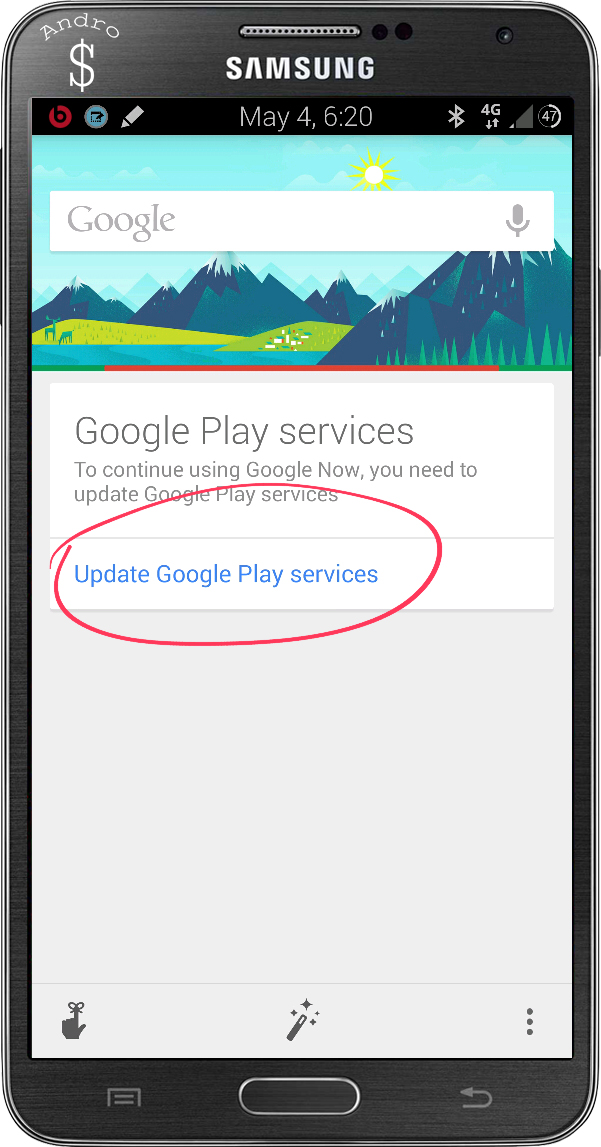
- You will be redirected to the Google Play Store now. Now click update, and wait for it to complete the updating process.
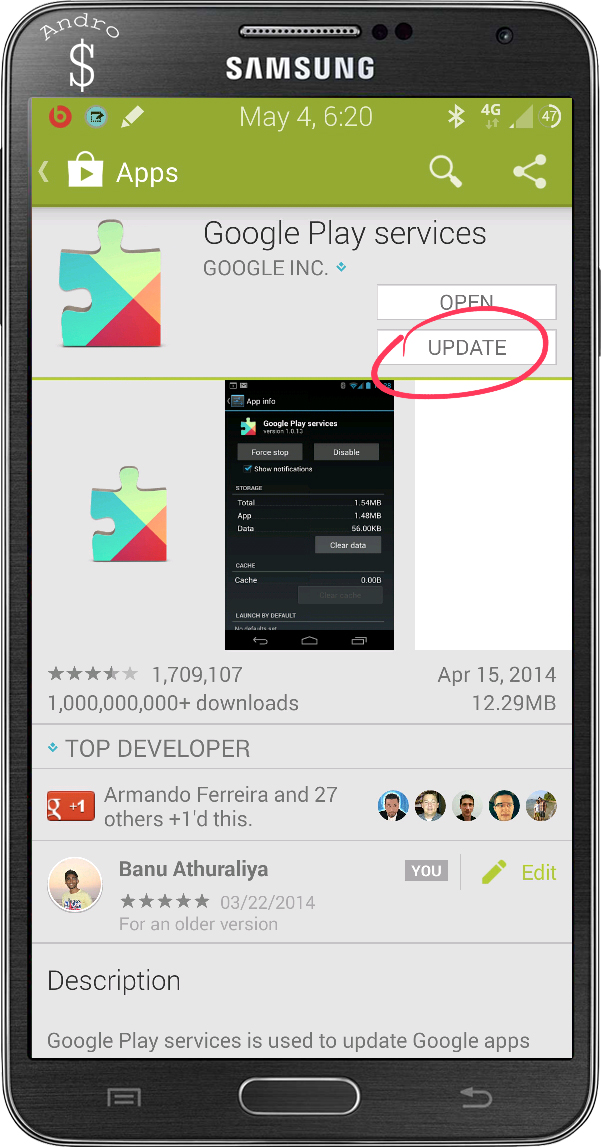
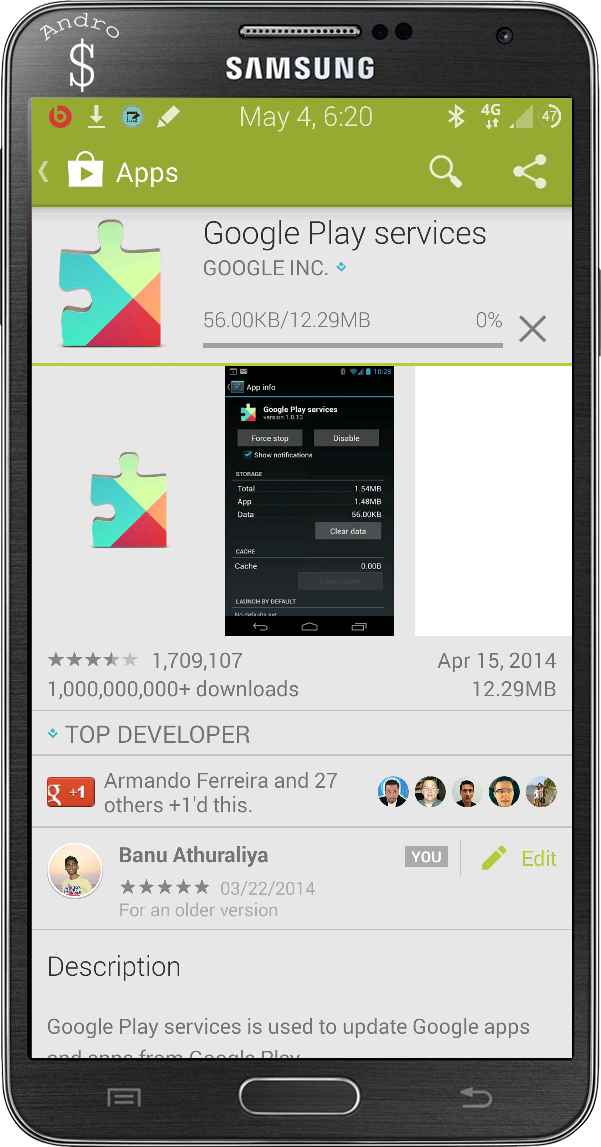
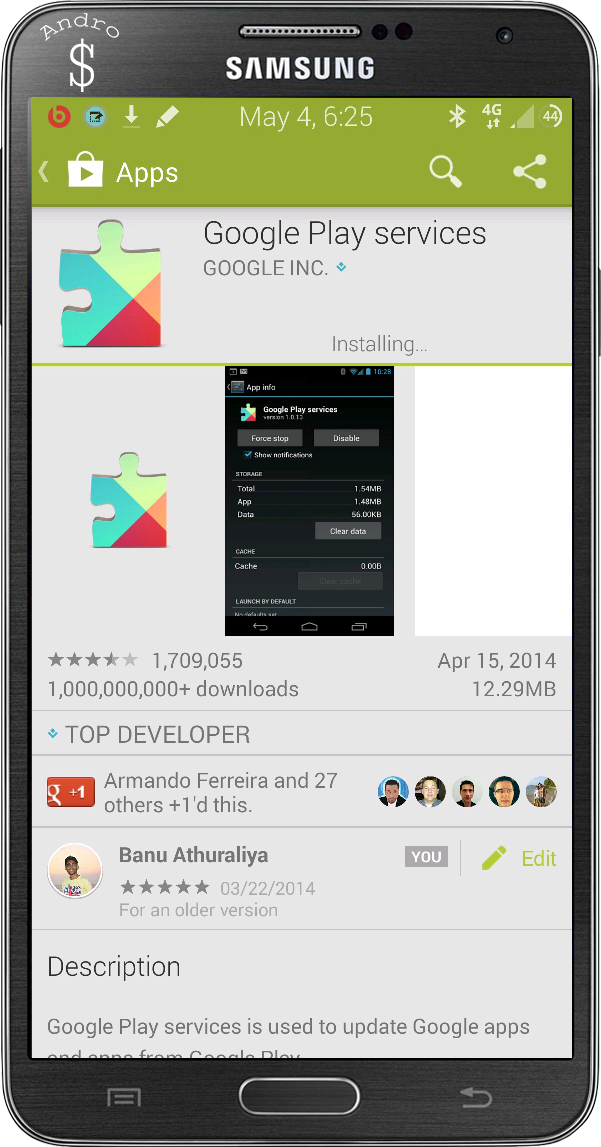
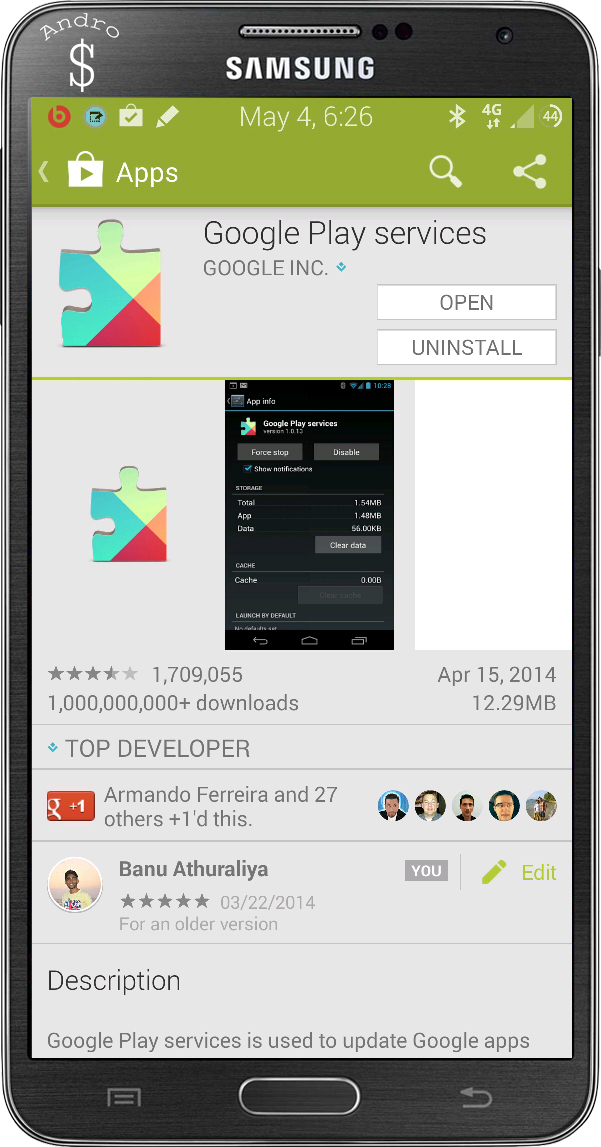
- Now Finally, Go back and open the Google Application (Google Search) and you will see that you have Google Now Cards appear.
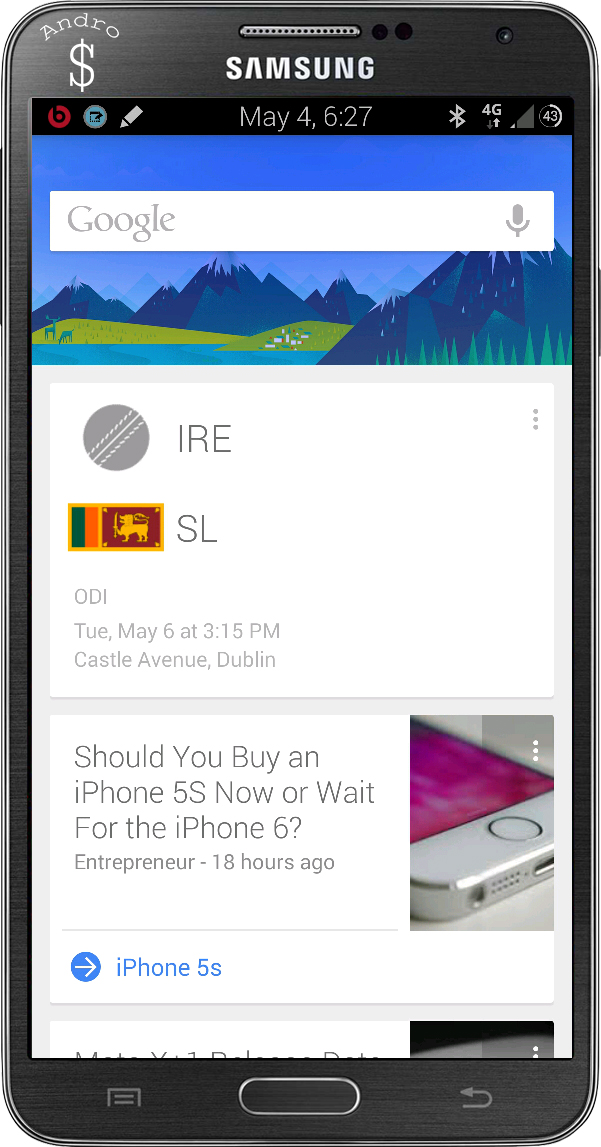
That’s it guys. Hope you guys found this useful. If you did, don’t forget to share this with your friends, because this is an important tweak that should be used to fix on every device in most Asian countries, since Google has disabled it to work in our region. Now You do not have to worry. Follow this and you will see Google Now cards appear.
Credits – I Would like to Thank Amila Gunasena for telling me about this fix.
Unfortunately, This Doesn’t work on Android Lollipop, But I’m trying to find a Fix for it. I will make a new tutorial and Update this post when I find a Fix for Android Lollipop.
If you try it out, don’t forget to drop a comment with your experience (Whether it worked or not). We would love to hear from you. Have a Good Day.





154 comments
This Really Worked on my Samsung Galaxy S3 Where as i was shocked!! I high;y recommend this to all the Samsung users. But this will not work on the Galaxy Ace as one of my friend tried to Install it did not work. But works well on the S Series and the Note Series!! Hats Off to you ANDRODOLLAR :* :* <3 Really loved this alot!!
🙂 Thanks for your Feedback… So Happy that it worked…
Woah thanks! Finally my Google now cards are working on my galaxy mega 5.8 😀 AndroDollar ftw! ^_^
🙂 Thanks for your Feedback… So Happy that it worked…
Tried this with the Nexus 5.. Works perfectly!
🙂 Thanks for your Feedback… So Happy that it worked…
Thanks for your Feedback… So Happy that it worked…
Not working with s4. Still says google now requires location services which are not available. Please help
You are not following it properly, do again from the begining… READ PROPERLY AND DO… DO NOT MISS ANY STEP…. It works on the S4, I know cz i Have 3 S4s with me…
Tried again bro. This time with note 3. Still no luck.
You’re NOT DOING IT RIGHT ! READ properly and do… IT IS WORKING !
It doesn’t work on my s4 too
You’re NOT DOING IT RIGHT ! READ properly and do… IT IS WORKING !
Thanks Banu!! It finally worked 😀
No prob man.. Enjoy and Stay Tuned to Andro Dollar for more 🙂
Hi, I am from Nepal, tried this many times on nexus 5 and it didn;t not work as of now. Please help. Is there any other workaround??
You are not following it properly, do again from the beginning… READ PROPERLY AND DO… DO NOT MISS ANY STEP…. It works on the NEXUS 5
thanks mate, it finally worked.
Enjoy and Stay Tuned to Andro Dollar for more 🙂
Thank You Very much! it really worked…..Keep up the good work and bet of luck! 🙂
🙂 Thanks for your Feedback… So Happy that it worked…
Hi I have the HTC One M8, I was hoping this method might work but I can’t even get past the 3rd step. The phone won’t allow me to disable or uninstall updates for google play services. Any ideas on a method that might work on my device. I got the phone from T-Mobile and then unlocked it. Did a factory reset yesterday and Google Now just won’t work.
Disable Google Device Manager under Security, Accessibility… This will allow you to Uninstall the updates… Then Follow along…
Dude you are a freaking genius. Thank you so much, I love my phone again!!!!
Enjoy 🙂 So Happy that it worked…Stay tuned to Andro Dollar for more…
Will definitely do so
i have the new LG G3 … tried this…but it wont let me toggle on the Google now after all the things i did. I followed every step and everything worked until the toggle…
Make sure you have the latest version of Google Search as well, I can guarantee that Google Now is working on the G3, just read it once more and try to do it fast cz it gets updated soon…
Tried it …it lets me toggle Google Now on and then it asks for my google account…but if i follow your steps and log in my google account before it wont even let me toggle it on….either way….it still wont work…At my location services it says – Not available in Iceland…i guess that is the problem…kinda silly tho. Tnx anyway.
No, No, No ! Trust me when I say this, this is WORKING ! Just read it once or twice more COMPLETELY ! Then try again… It will work…. It works man, No Matter what it says… Before trying even mine said Not Available in my country but now it is… Give it another Go… Don’t give up yet… 🙂 Stay Tuned to Andro Dollar for more… :
Worked on Xperia Z. Thanks AD!
🙂 Thanks for your Feedback… So Happy that it worked…Stay tuned to Andro Dollar for more…
Hi Banu, my moto x is running KK4.4.2
the default version of the google play services on my phone is 5.0.84, the Uninstall updates button is invisible for choosing.
and the default version of the google serach is 3.1.24.941712.arm, no on or off option is available in the setting.
Could you pls help?
Disable Google Device Manager under Security, Accessibility… This will allow you to Uninstall the updates… Then Follow along…
where i can disable Google Device Manager under Security, Accessibility… ?
Disable Google Device Manager under Security, Accessibility… This will allow you to Uninstall the updates… Then Follow along…
Yeahhh, NO!!! Doesn’t work on me
You are not following it properly, do again from the beginning… READ PROPERLY AND DO… DO NOT MISS ANY STEP…. Whats ur device btw?
kidding right?? I did 3 times your steps, anyway, I created the google account from Google Now app
NO I am Not Kidding… It is not working for you because you are not doing it right… This is the ONLY way to get it fixed so you better follow it properly if you want to get your Google Now Cards to work…
I’m saying now it’s working with a different method. Instead of adding your google account on settings-> accounts l, add it by the google now app
Don’t you see that it is kinda the same thing? All you have to do is remove your account and re-login…
Worked for me thanks a lot
🙂 Thanks for your Feedback… So Happy that it worked… Stay Tuned to Andro Dollar for more..
Thanks, works on Samsung Galaxy S4 Mini in Iceland !
🙂 Thanks for your Feedback… So Happy that it worked…
I’m assuming that it doesn’t work for me, because my Paranoid Android build’s Google Play Services only downgrade to version 5 and not version 4 like other people’s play services (and the pictures in this post). I could get it to work with an older ROM, I suppose…
It is working on Paranoid Android’s Latest Build.. I personally have it on the Nexus 5 and it is working… This method will work on Any Android version except Android L, if you follow the steps properly….
Have the latest gapps on latest PA for my note 2 (4.4.4). I said ok to return Play to factory version, BUT then there is no option to turn the service off. Consequently, even when I remove and re-add the Google account the toggle is still off and location services not available. Any thoughts?
ALSO, can’t find how to download Play updates again, since it’s not on the downloaded apps list, only on the all list, and there is no such option available there. Thanks.
So simple, just use an OLD GAPPS with the latest version of the Rom… You can update all the apps manually later…. Then you can get Google Now working as well by following this..
Yes, that makes sense. Wondering what version of GAPPS I should look for, do you have a link in mind maybe? Thanks a lot for your help!
Get the Android 4.4.2 one, that should work… Get it from here http://forum.xda-developers.com/showthread.php?t=2397942
HTC One M8. The option to DISABLE google play service is gray/inaccessible. What to do in this case?
Make sure you have updated Google Play Serivces and Google Search Before you begin or you will NOT see it…
All up to date. Could 4.4.3 or sense 6 be the problem?
No It shouldnt be because it is even working on Android 4.4.4…. It will Not work only with Android L but the rest of it it should work…. Read the article again and Try again…
I certainly read and tried before asking.
Force stop, disable , uninstall updates all these options are grayed on my phone for play service. Any way to disable it? What could be causing it that I can’t disable it?
I’m not sure, I will get hold of a HTC One (M8) running 4.4.3, Try it and let you know…
Try disabling android device manager as an administrator that should make the buttons pressable
There was no play service on device manager. Anyway a factory reset made it pressable but the method didn’t work for me. And yes I DID follow all the steps properly.
It doesn’t let me sign in to Google account when play service is turned off. Says Google had a problem communicating with the server.
It should work!
When I tried to enable Google Now after adding my account as explained in this tutorial, I found the same Problem (Google Now not available in my country (which is Tunisia)) so I did the following: I turn back to Application Manager and turned off then deleted cache and data of the Google Play Services. Then I removed [again] my Google account. After that, I opened the Google Search application and in its setting I found be possible to activate Google Now :-))) When I did it they asked me to login on Google and I did it. Since then Google Now is running its cards and on my welcome screen. I hope I have been useful.
That is exactly what I have said in the tutorial…
no andro you have to correct the tuto
1-remove service + cache
1′- remove search cache
2- remove acount
3- open google search
thant alllllllllllll
You are not doing it right! This tutorial is 100% accurate and it has helped a load of people! This is the correct method!
salut fedi j’ai pas pu le faire
ce compte est incompatible avec google now
une idée ???
Tried twice, didn’t work on my Xperia SL. The Google now card toggle does not get enabled. Any ideas? Please help.
Make sure Google Search and Google Play services have been Fully Updated! Then you can follow the guide… It works on the Xperia SL, I have personally tried it…. It works on any device having Google Now…
Well they are updated, but going to try again. Will let you know.
Try this http://www.reddit.com/r/Nexus5/comments/1vgm9u/psa_how_to_enable_google_now_if_its_not_available/ it worked for me!
did yo u found solution
i have tryed many time
and many tutorial
but still say google now not avaible on your country
You are probably not doing it right! Read it well, Understand and then do, because if you check the comments section you will see a lot of people saying its not working, and not working continuously, but after trying properly, they also said its working!
from 3 day i’m trying
it work on other tbalette by on my new device i become crazy :))
any way thanks for your interaction (y)
Didn’t work. Have you tried this recently? Anyway thanks.
Yes! You are probably not doing it right! Read it well, Understand and then do, because if you check the comments section you will see a lot of people saying its not working, and not working continuously, but after trying properly, they also said its working!
This did not work on my nexus 4. Plz help
I’ve got it working. After disabling the account I had to first turn on google now than restart google play services
Glad you got it working… Enjoy and stay tuned to Andro Dollar for more 🙂
People who wants to enable Google Now in Android L, Remove your existing Google Account, install Market Enabler/Unlocker. Then set the network to any US Network (root is required). From Settings > Apps, clear the data of Google. Now open Google, login to your Google account, Google now is active now.
Btw, this method works on Kitkat as well.
Yes
I have Galaxy s3 with cynogenmod cm11…. I follow ur instructions and Google now i become able to turn it on… BUT the problem that I can’t sign in to my Google account… Telling me that there is server connection problem… I update Google service and i become able to sign in BUT Google now become restricted again!!!!!
Help me please….
If you are using Mobile data, try WIFI or some other network and see… Or try to do a full factory reset and then try again…
If I use two google account emails do I need to remove both?
Yes
Did work on Samsung Galaxy GT-I9082, but only after uninstalling all updates of Google search. Re-installing updates disabled Google Now once again. Not funny…
Someway or the other it worked! Be happy!
Does it work on lollipop?
As I have mentioned in the Article, it does Not Unfortunately. But I am searcing for a proper fix… Stay tuned to Andro Dollar to know when I make a tutorial on that,,,
Unfortunately doesn’t work on Galaxy Note 4 (SM-N910F)
It does! I have tried it! It works on Any device running Android 4.4 or below…. Read the instructions well and try again!
Tried again following all steps closely … still doesn’t work!
You are probably doing something wrong somewhere because It worked for me on Both the Note 4 variants, the N910F and N910C
Still not working … but this did!
http://www.reddit.com/r/Nexus5/comments/1vgm9u/psa_how_to_enable_google_now_if_its_not_available/
Thanks though! I guess maybe it was a problem because of Android 4.4.4 and a custom ROM (X-Note v2 for Note 4).
Just FYI, That’s Exactly what I have here (Minus the Enabling Airplane Mode: It is NOT necessary)
Hi I recently rooted my HTC One M8 and my entire phone was reset as a result. The Google Now app is reporting that location services are unavailable. I used this before and it worked like a charm. After following the steps this time, the slider to turn Google Now on is still greyed out with the error message that Location services are unavailable. I am currently running Stock Sense 6 on Android 4.4.4. Please help
Don’t worry about Location Reporting. It doesn’t have anything to do with Google Now not working. Just Read the Article again and Redo it, it will work! Quick Note, Make sure that you have DISABLED Google Play Services before you remove the Account.
Thanks, I tried a bunch more times but it only worked after I used Market Unlocker. Thanks for all your help though, I appreciate the response.
You really don’t need Market Helper, but now since you have got it working either way, there’s nothing to worry 🙂 Stay tuned to Andro Dollar for more and Spread the word 🙂
I do every thing like this. Now i cant update google play services the shows error message. I cant use playstore. Help me
What is the error message?
Any news for 5.0?
I have found a method, but you need root… If you are interested let me know, I will do a Tutorial on that…
Rooting is not a problem post it
Here’s my tutorial for Android Lollipop with Root https://www.youtube.com/watch?v=pXXM2oOha9Y
hey Bhanu, any luck with android 5.0 without root??
Here’s my tutorial for Android Lollipop https://www.youtube.com/watch?v=pXXM2oOha9Y
Here’s my tutorial for Android Lollipop https://www.youtube.com/watch?v=pXXM2oOha9Y
its not working on my oneplus one. the google now toggle is still disabled
You are probably not doing it right.. Read the article again, and again and then try…
Hey Banu, I have accidentally completely removed my Google play services and now I can’t log into Google play store, how do I really install it is the an apk?
Get it from Android Police
Done
Doesn’t work on the note 4 🙁
It does work on the Note 4! I have personally tried and I can 100% Confirm it. Read and do exactly as mentioned in this Tutorial
I have enabled location services and used my phone and I disabled it and tried this like thrice but still doesn’t work… It says not available in your location
Then you are probably not doing it right… Read it well, Understand and do cz Every step is Crucial!
Can you just accept that this doesn’t work on some phones than telling people to try again and again because I’m fed up following the same instructions around 5 times and still It doesn’t work… Mines on the latest 4.4.4 FW N910C model…
Why Would I even lie? I have the Note 4, and Yes it is the N910C (Here’s my Video on it – https://www.youtube.com/watch?v=LC7AU4M1jbw) and It DOES WORK on the NOTE 4! You need to have everything updated before you start and once you follow the instructions PRECISELY it WILL WORK! If you skip even 1 step it won’t work… I have tried this on A hell of a lot of devices from Sony to Samsung to HTC to Motorola, heck even Chinese Android Phones and it all has worked. This method is not working only on Lollipop, and I have found a Fix for that too and that Tutorial will be up soon… Eitherway, I just wanted to clarify that there is nothing wrong with this Tutorial, and I keep telling people to try again, because I feel that they have not tried properly because I have tried on the Same device (which they speak of) and it worked for me but not for them, which is Impossible! So Kindly Try again…
PS: If you read through the comments you will see some people INSISTING that it DOES NOT work continuously, but later after trying EXACTLY as mentioned they have again said it is working… Just FYI!
Still doesn’t work
I have no option but to repeat myself, “You’re not doing it right then”
Fine, why don’t you do it? Is there anyway I can meet you or something?
I’m from Colombo Sri Lanka. If you can come, I will be my pleasure to fix it for you 🙂
Yeah sure 🙂 I live quite close..whereabouts? Isn’t there a way to pm here?
Contact me on Facebook/ Twitter/ Google+ for more info
Nvm I just rooted it.. Made everything simpler lol
You can use a market changing app to change the region but after that it’s the same steps given in this tutorial… Root or no root, this is how you fix the Google Now Cards
Only after I used market changer the Google now toggle was available
You DO NOT need Market Changer if you are running Android 4.4.4 or Below! The Tutorial given above works fine without it… Eitherway you have got it working now, so just enjoy it!
Here’s my New Tutorial https://www.youtube.com/watch?v=pXXM2oOha9Y
Fine we’ll agree that I’m doing it wrong so why don’t you do it for me? :/
Hi man, i have android 4.4.2 and it does not work. what to do ? do you have any ideas? thanks
It will work if you Follow the Instructions EXACTLY as said. Please read VERY CAREFULLY and try again!
I did as you nentioned but I still dont get to switch the google now to ON. It still says google now isnt available for your country.. please help me…
Thanks…
Pls do Exactly as mentioned, Read though the post once or twice very well and try again! You must do exactly as told to get it working…
I did as you mentioned but still It says as google now isnt available for your country. Please help me with this..
Thank yoi
This doesn’t work anymore with latest play services and lollipop :S
It does work on the latest Play Services if you do as mentioned in the “UPDATE” Section right on top! As long as your device is on Android 4.4.4 and below this will work, but if you’re on Android Lollipop you can follow my other tutorial here – https://www.youtube.com/watch?v=pXXM2oOha9Y
Didn’t work Galaxy Note 4 android 4.4.4, country : Tunisia
Just for feedback
It is working on 4.4.4! Just make sure to follow the rules exactly as mentioned
hi…
it’s not working for me!!
when i update the google search app, it says your account not legible to use now cards!!
Follow all the steps exactly as mentioned. It will work!
Make sure to follow the instructions exactly as mentioned! It is working!
Been trying at least five times, step by step. When I log back in into the google account it gives me this. LG F200l, running android 4.4.2.
Make sure to follow the instructions exactly as mentioned! It is working!
Should I also turn off Gmail? I see in one of the screenshots you have it turned off.
When play services are disabled, Gmail is disabled
Not in my case. Anyways, thanks man. I guess I’ll just try to root it and install market unlocker. Used that on my rooted table and.it worked great.
Yes, I have a video on that https://www.youtube.com/watch?v=pXXM2oOha9Y
Is there a method for Lollipop?
Yes, checkout my other video 🙂 https://www.youtube.com/watch?v=pXXM2oOha9Y
I tried this on my note 2 android 4.4.2 at first it didn’t work but when I uninstalled Google search updates , now cards started
🙂 Thanks for your Feedback… So Happy that it worked…